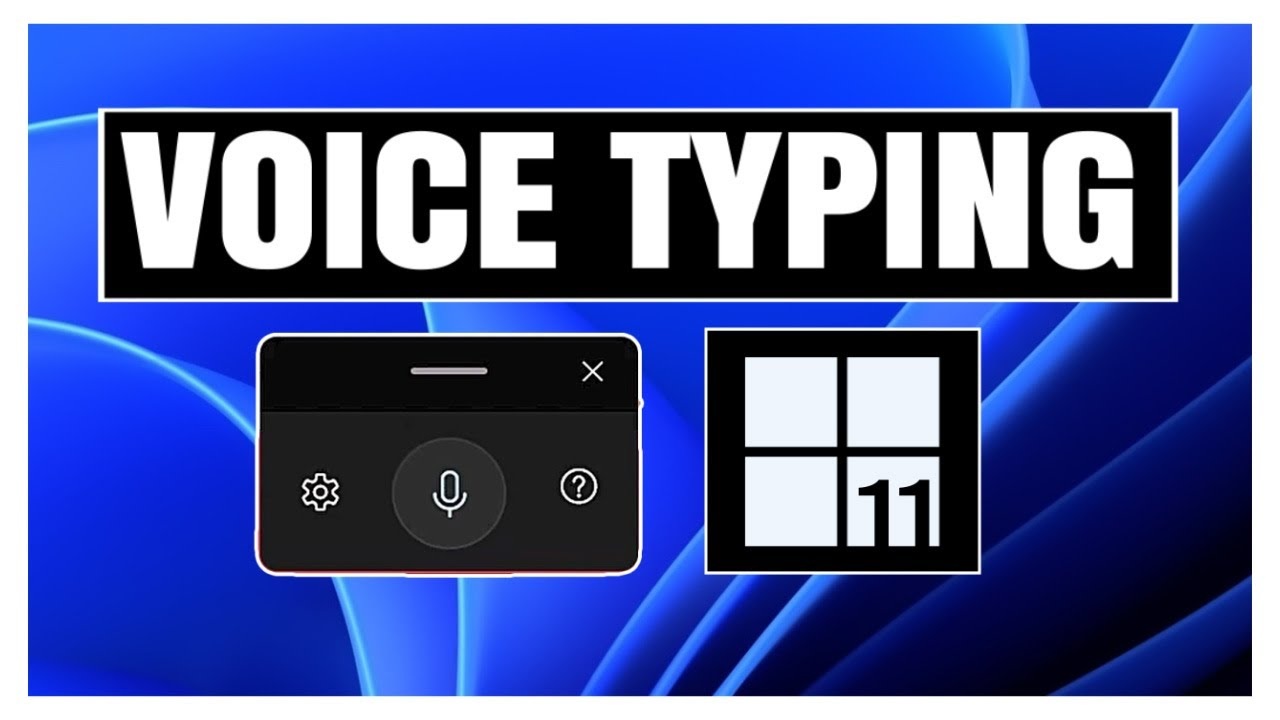
Typing has always been the default way to interact with a computer, but things are changing fast. With Windows 11, voice typing is no longer just a basic feature. It has evolved into a smart, reliable, and surprisingly accurate tool that can replace your keyboard in many situations.
If you have ever wished you could write emails, documents, or messages without touching the keyboard, Windows 11 voice typing makes that possible. Whether you are working, studying, or just chatting, this feature can save time and reduce effort.
This guide walks you through everything you need to know about Windows 11 voice typing, from setup to advanced tips, in a simple and practical way.
What is Windows 11 Voice Typing
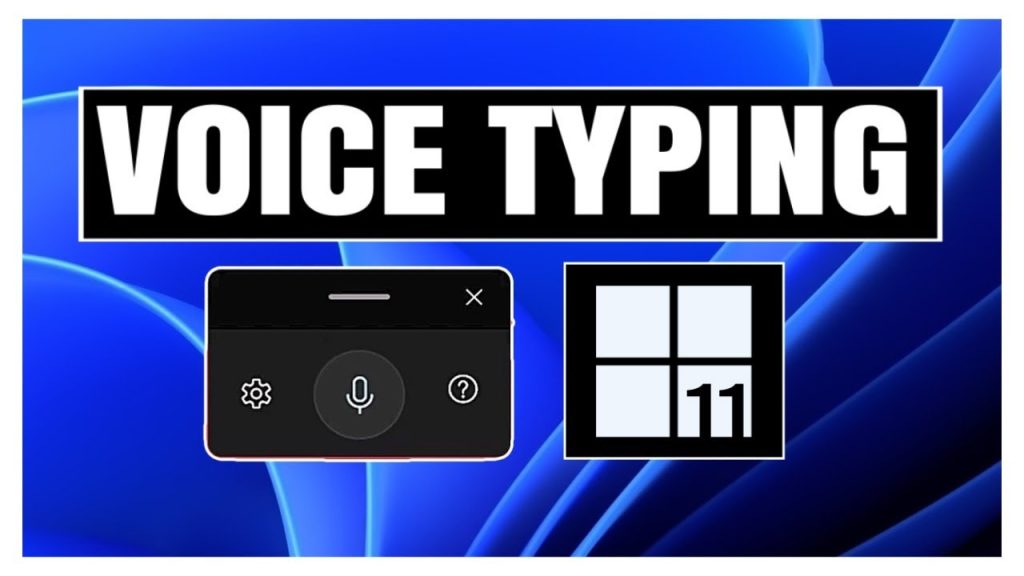
Windows 11 voice typing is a built in speech to text feature that converts your spoken words into written text in real time. It works across most apps including Microsoft Word, Notepad, browsers, and even chat platforms.
Unlike older dictation tools, this version uses cloud based AI to improve accuracy and understand natural speech. That means you can speak normally instead of carefully dictating every word.
It also supports automatic punctuation, voice commands, and multiple languages, making it useful for both casual and professional tasks.
Why Use Voice Typing Instead of Keyboard
Many people assume voice typing is only for accessibility, but that is no longer true. It is now a productivity tool used by writers, students, and professionals.
Here are some real advantages
First, it saves time. Speaking is naturally faster than typing. You can easily produce more content in less time.
Second, it reduces physical strain. If you spend long hours typing, voice typing can help prevent wrist fatigue and discomfort.
Third, it improves focus. When you speak your thoughts out loud, ideas often flow more naturally compared to typing.
Finally, it is convenient. You can type while cooking, walking, or doing other tasks without needing to sit in front of a keyboard.
How to Enable Voice Typing in Windows 11
Getting started with voice typing is simple and does not require any additional software.
Follow these steps
Press Windows key + H on your keyboard
A small voice typing panel will appear on your screen
Click on the microphone icon to start
Begin speaking clearly
That is it. Your words will instantly appear in the text field you are using.
If this is your first time, Windows may ask for microphone permission. Just allow access and you are ready to go.
Setting Up Microphone for Better Accuracy
Voice typing works best when your microphone is properly set up. A poor mic can reduce accuracy significantly.
Here is how to optimize it
Go to Settings
Open System and then Sound
Select your input device
Test your microphone and adjust input volume
If possible, use a headset or external microphone. Built in laptop microphones work, but a dedicated mic gives much better results.
Also, try to reduce background noise. Even small sounds like fans or traffic can affect recognition.
Understanding Voice Typing Commands
Windows 11 voice typing is not just about speaking words. You can also control formatting and punctuation using voice commands.
Here are some useful commands
Say period to add a full stop
Say comma to insert a comma
Say question mark for questions
Say new line to move to the next line
Say new paragraph to start a new paragraph
You can also say delete that to remove the last phrase or stop dictation to pause the feature.
These commands make voice typing feel more natural and closer to real writing.
Using Automatic Punctuation
One of the best features in Windows 11 voice typing is automatic punctuation. When enabled, the system adds punctuation marks based on your speech pattern.
To turn it on
Open the voice typing panel using Windows key + H
Click on the settings icon
Enable automatic punctuation
Once activated, you do not need to say punctuation commands manually. Just speak normally, and Windows will handle it for you.
Keep in mind that it may not always be perfect, so a quick review is still recommended.
Best Practices for Accurate Voice Typing
Voice typing is powerful, but a few simple habits can make a big difference in accuracy.
Speak clearly and at a natural pace. Avoid rushing or mumbling your words.
Use short sentences. Long and complex sentences can confuse the system.
Pause slightly between sentences. This helps the tool understand structure better.
Avoid background noise as much as possible.
Train yourself to think while speaking. This may feel unusual at first, but it becomes easier with practice.
Where You Can Use Voice Typing
One of the biggest advantages of Windows 11 voice typing is its flexibility. It works in almost every application where text input is supported.
You can use it in
Microsoft Word for writing documents
Google Docs for online work
Email clients like Outlook or Gmail
Browsers for typing search queries or filling forms
Chat apps such as WhatsApp Web or Slack
This makes it a versatile tool for both personal and professional use.
Voice Typing for Content Creation
If you create content regularly, voice typing can completely change your workflow.
Instead of typing every word, you can speak your ideas and let Windows convert them into text. This is especially useful for blog posts, scripts, and drafts.
Many writers use voice typing to overcome writer’s block. Speaking feels less restrictive than typing, allowing ideas to flow more freely.
You can then edit and refine the text later, which is often faster than writing everything from scratch.
Common Issues and How to Fix Them
Sometimes voice typing may not work as expected. Here are a few common issues and quick solutions.
If voice typing does not start
Check your internet connection
Make sure your microphone is enabled
If text accuracy is low
Adjust microphone settings
Reduce background noise
Speak more clearly
If the shortcut does not work
Make sure voice typing is enabled in settings
Restart your system if needed
Most problems are minor and can be fixed quickly.
Privacy and Security Considerations
Since voice typing uses cloud based processing, your speech is sent to Microsoft servers for recognition.
Microsoft states that this data is used to improve accuracy and user experience. However, if privacy is a concern, you can review and manage your speech settings in Windows 12 Download.
It is always a good idea to avoid dictating sensitive information in public or shared environments.
Tips to Improve Productivity with Voice Typing
Once you get comfortable with voice typing, you can use it to boost your productivity in many ways.
Use it for quick notes instead of typing
Draft emails faster without overthinking
Create outlines for projects or articles
Dictate ideas on the go
The more you use it, the more natural it becomes. Many users find that after a few days, they prefer speaking over typing for most tasks.
Final Thoughts
Windows 11 voice typing is more than just a convenience feature. It is a practical tool that can transform how you work and communicate on your computer.
At first, it may feel unusual to speak instead of type, but once you get used to it, the benefits become clear. You can save time, reduce effort, and even think more creatively.
If you have not tried it yet, now is a good time to start. Press Windows key + H, speak your thoughts, and see how quickly your words come to life on screen.
Leave a Reply