Author: british

  • Latest Windows 12 Download Info and Guide 2026

    Latest Windows 12 Download Info and Guide 2026

    If you’ve been searching for the latest Windows 12 download info, you’re not alone. With growing speculation around Microsoft’s next operating system, users across the globe are eager to know when it will launch, how to download it, and what new features it might bring.

    In this complete guide, you’ll find everything you need to know about Windows 12, including expected release details, download methods, system requirements, features, and important safety tips. Whether you are a casual user, gamer, or professional, this article will help you stay ahead.

    What Is Windows 12

    Windows 12 is expected to be the next major version of Microsoft’s operating system, following Windows 11. While Microsoft has not officially released a full version yet, leaks, developer insights, and industry trends strongly suggest that Windows 12 is under development.

    The goal of Windows 12 is likely to improve performance, introduce deeper AI integration, and create a more modern user experience. Microsoft is focusing heavily on cloud computing, AI tools, and seamless cross device usage.

    Windows 12 Release Date Expectations

    One of the most common questions is: When will Windows 12 be released

    As of now, there is no official public release date. However, based on Microsoft’s past patterns and insider reports:

    • Windows 10 released in 2015
    • Windows 11 released in 2021
    • Windows 12 is expected between late 2025 and early 2026

    Some early builds may already be available through the Windows Insider Program, but the stable version is still awaited.

    Latest Windows 12 Download Info

    At the moment, there is no official direct download link for Windows 12 from Microsoft’s website. If you see any site offering a “Windows 12 ISO download” publicly, you should be cautious.

    Safe Ways to Access Windows 12

    Here are the only trusted methods to get early access:

    1. Windows Insider Program

    Microsoft offers preview builds through its Insider Program.

    Steps to join:

    1. Go to Settings
    2. Click on Windows Update
    3. Select Windows Insider Program
    4. Sign in with your Microsoft account
    5. Choose Dev Channel or Canary Channel

    This is currently the safest way to experience early Windows 12 related updates.

    2. Official Microsoft Website

    Once Windows 12 is officially released, you will be able to download it from:

    • Microsoft official site
    • Windows Update section
    • Media Creation Tool

    Avoid third party download sources to prevent malware risks.

    Windows 12 Expected Features

    Windows 12 is expected to bring significant upgrades. Here are some of the most talked about features:

    AI Powered Desktop Experience

    Microsoft is investing heavily in AI. Windows 12 may include:

    • Smart assistant integrated into the system
    • AI driven task automation
    • Context aware suggestions

    This could transform how users interact with their PCs.

    Modular System Design

    Windows 12 may use a modular architecture. This means:

    • Faster updates
    • Improved system stability
    • Customizable components

    Enhanced Gaming Performance

    Gamers can expect:

    • Better DirectX support
    • Faster load times
    • Improved graphics optimization

    Improved Security

    Security is expected to be stronger with:

    • Advanced hardware level protection
    • Better ransomware defense
    • Improved Windows Hello

    Redesigned User Interface

    A cleaner and more modern UI is expected:

    • Floating taskbar
    • Dynamic widgets
    • Transparent effects

    Windows 12 System Requirements (Expected)

    Although not officially confirmed, here are likely requirements based on trends:

    • Processor: 64 bit CPU, 1 GHz or faster
    • RAM: Minimum 8 GB
    • Storage: 64 GB or more
    • TPM: Version 2.0 required
    • GPU: DirectX 12 compatible

    These requirements may change once Microsoft makes an official announcement.

    How to Prepare for Windows 12

    Even before the official release, you can prepare your system:

    1. Check Hardware Compatibility

    Ensure your PC meets modern requirements such as TPM and secure boot.

    2. Update Drivers

    Keep all drivers up to date for smoother transition.

    3. Backup Your Data

    Always create a backup before installing any new OS.

    4. Free Up Storage

    Make sure you have enough space for installation.

    Windows 12 vs Windows 11

    Here is a quick comparison:

    FeatureWindows 11Windows 12 (Expected)
    UI DesignModernMore advanced and dynamic
    AI FeaturesLimitedDeep integration
    PerformanceGoodFaster and optimized
    UpdatesRegularModular and faster

    Windows 12 is expected to be more powerful and intelligent than its predecessor.

    Common Mistakes to Avoid

    When searching for Windows 12 downloads, avoid these common mistakes:

    • Downloading from unofficial websites
    • Installing unknown ISO files
    • Ignoring system requirements
    • Skipping backups

    These mistakes can lead to data loss or malware infections.

    Is Windows 12 Free

    Microsoft may follow a similar approach as Windows 11:

    • Free upgrade for eligible Windows 11 users
    • Paid license for new installations

    However, official pricing details are not confirmed yet.

    Should You Upgrade to Windows 12

    If your device supports it, upgrading to Windows 12 can offer:

    • Better performance
    • Improved security
    • Latest features

    However, it is recommended to wait for the stable release before upgrading your primary system.

    Final Thoughts

    The latest Windows 12 download info shows that while the operating system is not fully available yet, it is definitely on the horizon. With expected features like AI integration, improved performance, and a modern design, Windows 12 could be a major upgrade.

    For now, the safest way to explore early versions is through the Windows Insider Program. Always rely on official sources and avoid risky downloads from unknown websites.

    Stay updated with trusted platforms like your own site, Window Live Updates, to get the latest news, guides, and official announcements about Windows 12.

    FAQs

    Is Windows 12 officially released

    No, it is not officially released yet.

    Can I download Windows 12 ISO now

    No official ISO is available publicly.

    How can I test Windows 12 early

    You can join the Windows Insider Program.

    Will Windows 12 support old PCs

    It may require newer hardware similar to Windows 11.

  • Window Live Updates Latest News 2026

    Window Live Updates Latest News 2026

    If you rely on your PC for work, gaming, or daily tasks, staying updated with the latest Windows changes is more important than ever. With frequent updates, security patches, feature rollouts, and rumors about upcoming versions, users often feel overwhelmed trying to keep up. That is where Window Live Updates Latest News becomes essential.

    In this detailed guide, we will break down the latest updates, features, improvements, and what they mean for everyday users. Whether you are using Windows 11 or waiting for the next big release, this article will help you stay informed and ahead.

    What Is Window Live Updates?

    Window Live Updates refers to real time information, updates, and announcements related to Microsoft Windows operating systems. This includes:

    • Security patches and bug fixes
    • Feature updates and UI improvements
    • Performance enhancements
    • Insider Preview builds
    • Future Windows releases

    Keeping track of Window Live Updates Latest News helps users maintain system security, improve performance, and take advantage of new features as soon as they are released.

    Latest Windows Updates in 2026

    Microsoft has continued to improve Windows 11 with frequent updates in 2026. These updates focus on performance, AI integration, and user experience.

    1. AI Powered Features Expansion

    One of the biggest trends in recent updates is the integration of AI directly into Windows. Microsoft has introduced:

    • Smart Copilot enhancements
    • AI powered search improvements
    • Context aware suggestions across apps

    These features aim to make daily tasks faster and more intuitive.

    2. Improved System Performance

    Recent updates have focused on making Windows lighter and faster. Key improvements include:

    • Faster boot times
    • Reduced background resource usage
    • Better memory management

    This is especially beneficial for users with mid range or older systems.

    3. Security Updates and Enhancements

    Security remains a top priority. The latest updates include:

    • Advanced ransomware protection
    • Improved Windows Defender capabilities
    • Regular vulnerability patches

    Keeping your system updated ensures protection against evolving cyber threats.

    4. User Interface Improvements

    Microsoft continues refining the Windows interface with:

    • Cleaner design elements
    • Improved dark mode
    • Better multitasking features like Snap layouts

    These changes make Windows more user friendly and visually appealing.

    Windows Insider Program Updates

    The Windows Insider Program gives users early access to upcoming features. In recent months, insiders have seen:

    • Experimental AI tools
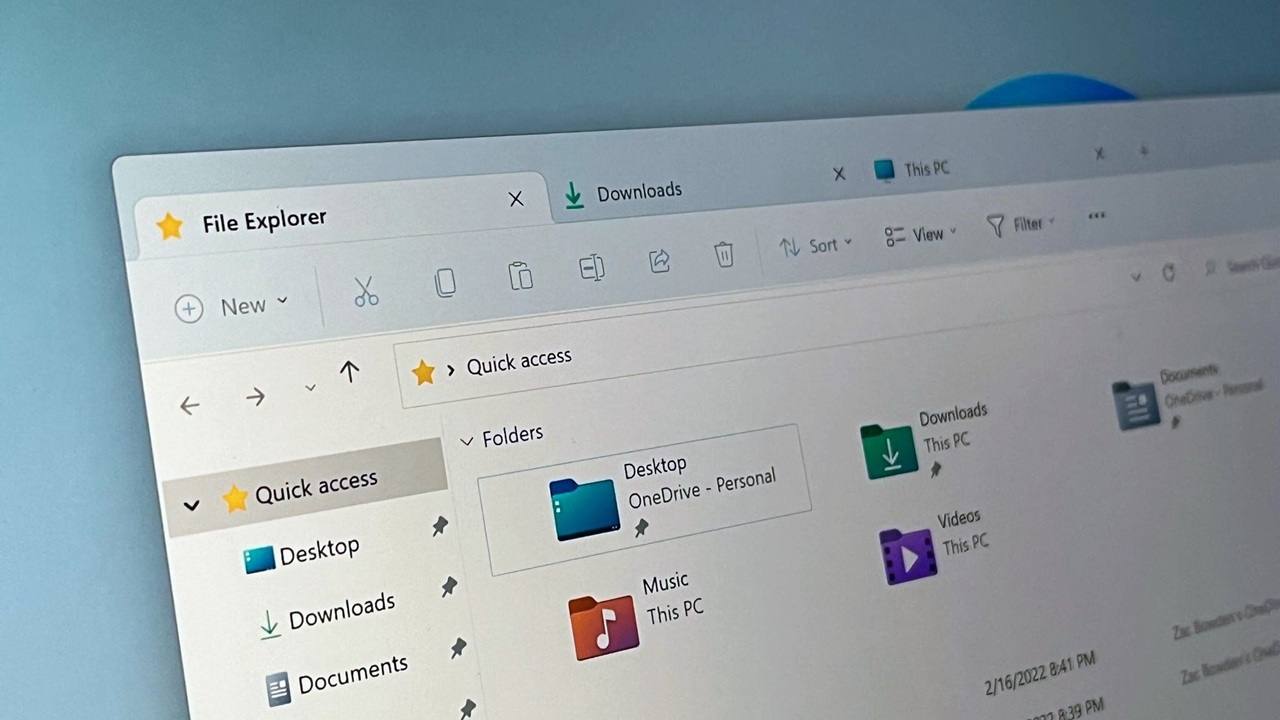
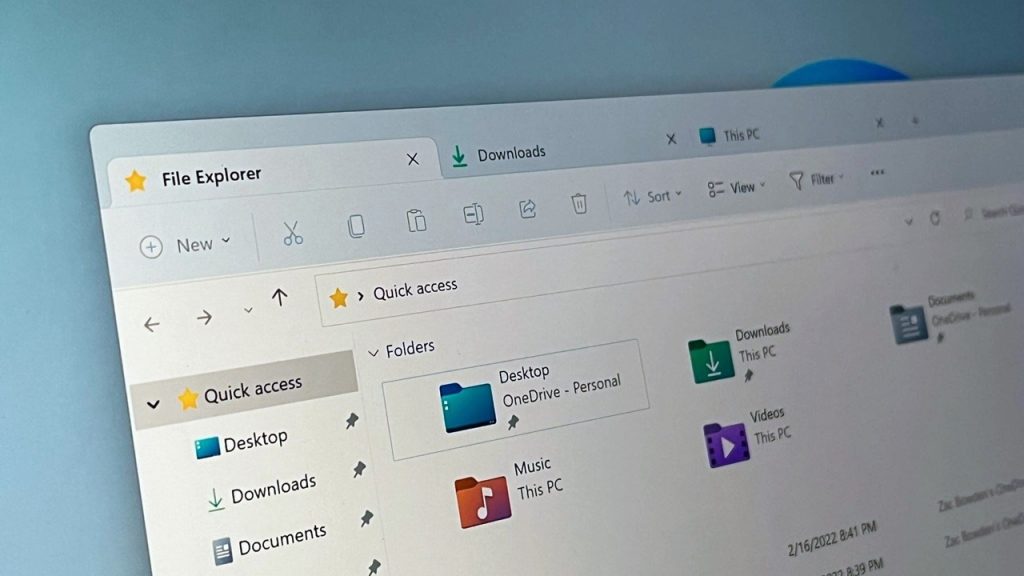
    • Redesigned File Explorer
    • Enhanced taskbar functionality

    If you enjoy testing new features before they are publicly released, joining the Insider Program can be a great option.

    Windows 11 Feature Updates Breakdown

    Microsoft releases feature updates regularly. Some of the most notable additions include:

    Enhanced File Explorer

    • Tabbed browsing improvements
    • Faster file search
    • Better cloud integration

    Task Manager Redesign

    • New modern UI
    • Improved performance tracking
    • Energy usage monitoring

    Widgets and Personalization

    • More customizable widgets
    • Personalized news feeds
    • Third party widget support

    Windows Update Channels Explained

    Understanding update channels helps you decide how quickly you receive new features.

    Stable Channel

    • Regular updates for general users
    • Maximum stability and reliability

    Beta Channel

    • Early access with minor bugs
    • Ideal for testing new features

    Dev Channel

    • Cutting edge updates
    • Higher risk of bugs and instability

    Choosing the right channel depends on your needs and technical comfort level.

    Common Issues With Windows Updates

    While updates bring improvements, they can sometimes cause problems.

    1. Update Installation Errors

    Users may face errors during installation due to:

    • Insufficient storage
    • Corrupted update files
    • Internet issues

    2. Performance Slowdowns

    Sometimes updates can temporarily affect system performance.

    3. Compatibility Issues

    Certain apps or drivers may not work properly after updates.

    How to Fix These Issues

    • Run Windows Update Troubleshooter
    • Free up disk space
    • Update drivers
    • Restart your system

    Staying informed through Window Live Updates Latest News helps you quickly identify and fix such issues.

    Upcoming Windows Features to Watch

    Based on recent reports and insider builds, here are some upcoming features:

    1. Deeper AI Integration

    Expect smarter automation and voice assistance across the OS.

    2. Cloud Powered Windows Experience

    More features will rely on cloud processing for better performance.

    3. Improved Gaming Performance

    Enhancements for DirectX and better resource allocation for games.

    4. Better Battery Optimization

    Especially useful for laptop users.

    Why Staying Updated Matters

    Ignoring updates can lead to:

    • Security vulnerabilities
    • Slower performance
    • Missing out on new features

    By following Window Live Updates Latest News, you ensure your system stays optimized and secure.

    Tips to Manage Windows Updates Efficiently

    Here are some practical tips:

    Schedule Updates

    Set active hours to avoid interruptions during work.

    Use Metered Connections

    Control update downloads if you have limited data.

    Backup Your Data

    Always keep backups before major updates.

    Check Update History

    Monitor what changes have been installed.

    Windows 11 vs Future Windows Versions

    While Windows 11 continues to evolve, there is growing curiosity about the next version of Windows.

    What We Know So Far

    • Microsoft is focusing heavily on AI
    • Modular updates may become more common
    • Faster release cycles are expected

    Although details are limited, future versions will likely build upon the current foundation.

    Best Sources for Window Live Updates Latest News

    To stay updated, follow reliable sources:

    • Official Microsoft blog
    • Windows Insider announcements
    • Tech news websites
    • Dedicated update tracking websites like yours

    Having a trusted source ensures you receive accurate and timely information.

    Final Thoughts

    The world of Windows is constantly evolving. From AI powered features to performance improvements and security updates, there is always something new to explore. Staying updated is no longer optional, it is essential.

    By following Window Live Updates Latest News, you can make smarter decisions, avoid common issues, and get the most out of your system. Whether you are a casual user or a tech enthusiast, keeping track of updates ensures you stay one step ahead.

    Make it a habit to check for updates regularly and rely on trusted platforms for accurate information. Your PC will thank you for it.

  • Windows 12 New Features – Full List & Guide

    Windows 12 New Features – Full List & Guide

    Windows 12 has officially arrived, and tech enthusiasts worldwide are eager to explore its capabilities. As the latest evolution of Microsoft’s flagship operating system, Windows 12 promises significant improvements in performance, security, and usability. In this article, we will dive deep into the Windows 12 new features list, covering everything from design updates to advanced AI integrations. Whether you’re a casual user, a gamer, or a professional, this guide will help you understand what makes Windows 12 stand out.

    Sleek and Modern User Interface

    One of the most noticeable changes in Windows 12 is its revamped user interface. Microsoft has refined the design to make it more intuitive, modern, and visually appealing. The interface now includes:

    • Rounded corners for all windows and menus, giving the OS a softer and cleaner look.
    • A redesigned taskbar with enhanced customization options. Users can now pin apps, manage notifications, and access widgets effortlessly.
    • A new Start Menu with adaptive suggestions that highlight your most-used apps, recent documents, and relevant AI recommendations.

    This modern UI focuses on improving user experience while maintaining consistency across devices, whether you’re on a desktop, laptop, or touchscreen device.

    AI-Powered Features and Assistance

    Windows 12 integrates AI features deeply into the operating system, leveraging Microsoft’s AI ecosystem, including integrations similar to ChatGPT, Gemini, and Grok. Some of the AI-driven highlights include:

    • AI Copilot: An assistant embedded into Windows 12 that helps with tasks like scheduling, summarizing documents, and answering queries directly on your desktop.
    • Smart Search: The search functionality now predicts your queries based on behavior patterns and preferred apps, making file retrieval faster.
    • Automated System Optimization: AI monitors your system usage, suggesting updates and cleaning temporary files to improve speed and efficiency.

    These AI features are designed to make Windows 12 more proactive, helping users complete tasks faster and with minimal effort.

    Enhanced Security and Privacy

    Security has always been a critical aspect of Windows, and Windows 12 takes it to the next level. With cyber threats evolving constantly, Microsoft has introduced several new measures:

    • Advanced Threat Protection: Built-in AI-driven security scans identify malicious apps and suspicious behaviors in real-time.
    • Zero Trust Architecture: Ensures every app and connection is verified before granting access to sensitive data.
    • Improved Privacy Controls: Users have more granular control over data sharing, microphone, and camera usage for apps.
    • Secure Boot Enhancements: Faster and safer boot process that prevents unauthorized firmware tampering.

    These features make Windows 12 one of the most secure operating systems currently available.

    Performance Improvements

    Windows 12 focuses heavily on speed and responsiveness. Microsoft has optimized the system to work efficiently even on older devices while fully utilizing the capabilities of modern hardware. Key performance upgrades include:

    • Faster Boot Times: Windows 12 boots up significantly faster compared to Windows 11, thanks to optimized startup services and AI-assisted resource management.
    • Reduced Background Resource Usage: The OS intelligently prioritizes active apps, reducing RAM and CPU usage in idle apps.
    • Smarter Battery Management: For laptops and tablets, AI predicts app usage and adjusts power consumption to extend battery life.

    These improvements ensure smoother multitasking and gaming experiences for users.

    Gaming Enhancements

    Windows 12 is a gamer-friendly OS, building upon the features introduced in Windows 11. Microsoft has added several enhancements to improve gaming performance:

    • DirectStorage 2.0: Significantly reduces game load times by allowing the GPU to access storage directly.
    • Auto HDR Improvements: Expands the dynamic range of supported games, making graphics more vibrant and realistic.
    • Enhanced Game Mode: Optimizes CPU and GPU resources automatically while gaming.
    • Cloud Gaming Integration: Seamless access to Xbox Cloud Gaming directly through the OS.

    Whether you’re a casual gamer or a competitive esports player, Windows 12 aims to provide an immersive gaming experience.

    Improved Multitasking and Productivity

    Windows 12 introduces several features that enhance productivity and multitasking:

    • Snap Layouts 2.0: Offers more flexible window management with AI suggestions for optimal screen arrangement.
    • Virtual Desktops: Now easier to create and customize with individual wallpapers, settings, and app layouts for work, study, or entertainment.
    • Integrated Microsoft 365 Tools: Word, Excel, and Teams now come pre-integrated with smarter AI suggestions.
    • Focus Sessions: A feature that blocks notifications and optimizes system resources for uninterrupted work.

    These improvements make Windows 12 ideal for professionals and students alike.

    Cloud Integration and Cross-Device Features

    Windows 12 is built for the cloud-first era, with improved integration across devices:

    • OneDrive Enhancements: Files sync faster, and AI helps in organizing and tagging files automatically.
    • Seamless Device Handoff: Start a task on one device and continue on another with minimal friction.
    • Universal Clipboard: Copy content on one device and paste it on another, including text, images, and links.
    • Cross-Platform Apps: Native support for Android apps, similar to Windows 11, with improved performance.

    Cloud integration makes Windows 12 a truly connected operating system.

    New Accessibility Features

    Microsoft has emphasized accessibility in Windows 12, ensuring everyone can use the OS effectively:

    • Voice Navigation: Control your PC completely through voice commands.
    • Improved Narrator: Enhanced AI voice reads documents and web pages with natural intonation.
    • Adaptive Display Options: AI automatically adjusts contrast, brightness, and font sizes for comfortable viewing.
    • Sign Language Avatars: A pioneering feature translating text and speech into sign language on-screen.

    These features highlight Microsoft’s commitment to inclusive computing.

    Customization and Personalization

    Windows 12 allows users to customize the OS like never before:

    • Dynamic Themes: Change themes based on the time of day or weather.
    • Widget Upgrades: Fully interactive widgets for news, weather, and stocks.
    • Taskbar Personalization: Resize, move, and customize taskbar icons and notifications.
    • Emoji and Sticker Packs: Richer and more expressive ways to communicate across apps.

    With these enhancements, Windows 12 can feel personalized to your exact preferences.

    Windows 12 vs Previous Versions

    Comparing Windows 12 with Windows 11, it’s clear that Microsoft focused on AI integration, productivity, security, and cloud connectivity. While Windows 11 was a solid step forward, Windows 12 elevates the experience with smarter AI, faster performance, and a more modern interface.

    For users still on Windows 10 or 11, upgrading to Windows 12 means accessing:

    • Faster system performance
    • Advanced AI tools
    • Enhanced security and privacy
    • Seamless cloud and cross-device connectivity

    Windows 12 truly represents the next generation of modern computing.

    Conclusion

    Windows 12 Iso File brings a combination of speed, security, AI intelligence, and user-friendly design that makes it a must-upgrade for tech enthusiasts and professionals alike. From AI-powered assistance to cloud integration, gamers to productivity-focused users, Windows 12 offers a comprehensive set of features for everyone.

    If you’re looking for a smooth, secure, and future-ready OS, Windows 12 should be at the top of your upgrade list. Its rich feature set and AI-driven improvements make it a standout release in Microsoft’s operating system lineup.

  • Windows 12 System Requirements 2026 Guide

    Windows 12 System Requirements 2026 Guide

    If you are planning to upgrade your PC or install Microsoft’s upcoming operating system, understanding the Windows 12 system requirements is the first and most important step. With Microsoft pushing deeper into AI-powered computing, Windows 12 is expected to bring significant changes compared to Windows 11. That means stricter hardware requirements, better performance expectations, and new features that rely heavily on modern processors.

    In this detailed guide, we will break down everything you need to know about Windows 12 requirements, including minimum specs, recommended specs, CPU support, storage needs, and whether your current PC is ready.

    What is Windows 12?

    Windows 12

    Windows 12 is expected to be Microsoft’s next-generation operating system, focusing heavily on AI integration, cloud computing, and improved user experience. While Microsoft has not officially released full details, leaks and industry trends suggest that Windows 12 will require more powerful hardware than Windows 11.

    The goal is simple: deliver faster performance, smarter features, and better security.

    Windows 12 Minimum System Requirements

    Here are the expected minimum system requirements for Windows 12 based on current leaks and expert analysis:

    • Processor (CPU): 64-bit processor, 2 GHz or faster, 2 or more cores
    • RAM: 8 GB minimum
    • Storage: 64 GB or higher
    • System Firmware: UEFI with Secure Boot support
    • TPM: TPM 2.0 required
    • Graphics Card: DirectX 12 compatible GPU with WDDM 2.x
    • Display: 9-inch display with HD resolution (720p)
    • Internet Connection: Required for setup and updates

    These requirements already show a jump from Windows 11, especially in RAM and processing power.

    Recommended System Requirements for Windows 12

    If you want smooth performance and full access to AI features, you should aim for the recommended specifications:

    • Processor: Intel Core i5 12th Gen or AMD Ryzen 5 5000 series or newer
    • RAM: 16 GB or more
    • Storage: 256 GB SSD or higher
    • Graphics: Dedicated GPU or modern integrated graphics
    • Display: Full HD or higher
    • Internet: High-speed connection for cloud-based features

    Running Windows 12 on minimum specs may work, but it will not deliver the best experience.

    Why Windows 12 Requires Better Hardware

    Microsoft is shifting toward AI-driven computing, which is the main reason behind the higher system requirements.

    1. AI Integration

    Windows 12 is expected to include built-in AI assistants, smart search, and automation tools. These features require more RAM and CPU power.

    2. Security Enhancements

    Security is a major focus. Requirements like TPM 2.0 and Secure Boot ensure better protection against malware and attacks.

    3. Faster Performance

    With modern hardware, Windows 12 will deliver faster boot times, smoother multitasking, and improved app performance.

    4. Cloud Integration

    Many features may rely on cloud processing, requiring both strong hardware and a stable internet connection.

    CPU Compatibility for Windows 12

    Processor compatibility is one of the most critical factors.

    Supported CPUs (Expected)

    • Intel 10th Gen and newer (12th Gen or later recommended)
    • AMD Ryzen 3000 series and newer
    • ARM-based processors (for specific devices)

    Older CPUs may not be supported, similar to what happened with Windows 11.

    RAM Requirements Explained

    Windows 12 is expected to increase the minimum RAM to 8 GB, which reflects modern usage needs.

    • 8 GB RAM: Basic usage, limited multitasking
    • 16 GB RAM: Smooth performance, recommended for most users
    • 32 GB RAM: Ideal for gaming, editing, and heavy workloads

    If your system currently has 4 GB RAM, upgrading will be necessary.

    Storage Requirements and SSD Importance

    Storage is not just about capacity anymore. Speed matters.

    • Minimum 64 GB storage will allow installation
    • SSD is highly recommended for performance
    • NVMe SSD will provide the best speed

    Traditional HDDs may slow down Windows 12 significantly.

    Graphics Requirements

    Windows 12 will rely more on graphical performance for UI and AI features.

    • DirectX 12 support is mandatory
    • Integrated graphics will work, but dedicated GPUs are better
    • Gaming or design users should use modern GPUs

    TPM 2.0 and Secure Boot Explained

    Many users struggled with this in Windows 11, and Windows 12 will continue this requirement.

    TPM 2.0

    Trusted Platform Module is a security chip that protects your data and system integrity.

    Secure Boot

    Ensures that only trusted software runs during startup.

    You can check TPM by:

    • Press Windows + R
    • Type tpm.msc

    How to Check if Your PC Can Run Windows 12

    Follow these simple steps:

    1. Check your processor model
    2. Verify RAM and storage
    3. Enable TPM 2.0 in BIOS
    4. Ensure Secure Boot is enabled
    5. Check GPU compatibility

    Microsoft may release an official compatibility tool once Windows 12 is announced.

    Can You Upgrade from Windows 11 to Windows 12?

    Most likely, yes. But only if your hardware meets the requirements.

    If your PC already supports Windows 11 comfortably, there is a good chance it will support Windows 12 as well. You can check the latest Windows 12 ISO and system requirements here. However, older systems might be left behind.

    Should You Upgrade Your PC for Windows 12?

    Here is a simple guide:

    • If your PC has 8 GB RAM and SSD → You are close to ready
    • If your PC has 16 GB RAM and modern CPU → You are fully ready
    • If your PC has 4 GB RAM or HDD → Upgrade required

    Upgrading RAM and switching to SSD can make a huge difference.

    Windows 12 vs Windows 11 Requirements

    FeatureWindows 11Windows 12 (Expected)
    RAM4 GB8 GB
    Storage64 GB64 GB+
    CPU8th Gen Intel10th Gen+
    TPMRequiredRequired
    AI FeaturesLimitedAdvanced

    Windows 12 clearly aims to push hardware forward.

    Final Thoughts

    Windows 12 is shaping up to be a major upgrade with a strong focus on AI, performance, and security. While the minimum system requirements are still manageable for modern PCs, the recommended specifications clearly point toward more powerful hardware.

    If you are planning ahead, upgrading your system now with more RAM, SSD storage, and a modern processor will ensure that you are ready for Windows 12 when it officially launches.

    Staying prepared will save you time, money, and frustration later.

    FAQs

    Will Windows 12 require internet?

    Yes, an internet connection will likely be required for setup and updates.

    Is 4 GB RAM enough for Windows 12?

    No, 8 GB is expected to be the minimum.

    Can old laptops run Windows 12?

    Only if they meet the new hardware requirements.

    Will Windows 12 be free?

    Microsoft may offer a free upgrade for eligible Windows 11 users.

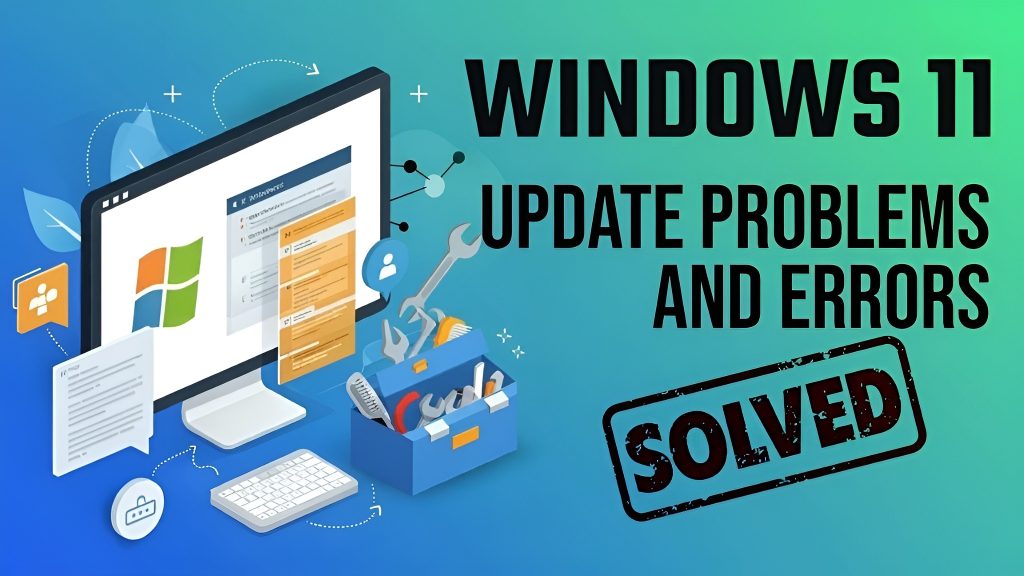
  • Windows 11 Update Problems Solved Fast

    Windows 11 Update Problems Solved Fast

    Windows 11 is Microsoft’s latest operating system, offering a sleek design, better multitasking, and enhanced security features. However, as with any major OS, updates can sometimes create challenges for users. From installation errors to system slowdowns, Windows 11 update issues can be frustrating. Fortunately, most of these problems have effective solutions that don’t require advanced technical skills.

    In this comprehensive guide, we’ll cover the most common Windows 11 update problems and provide step-by-step solutions to help you get your system running smoothly again. Whether you are a casual user or a professional, these tips will save you time and prevent stress.

    Common Windows 11 Update Problems

    Before diving into solutions, it’s essential to identify the most frequent update issues users face:

    1. Windows Update Stuck or Freezing
      Updates may appear to download but never complete, leaving your system stuck on a particular percentage.
    2. Update Installation Fails
      Errors like 0x80070002 or 0x8024a105 often prevent updates from installing successfully.
    3. Slow System Performance After Updates
      After installing a major update, some users notice slower boot times, lag, or unresponsive applications.
    4. Compatibility Issues
      Some devices or drivers may not be compatible with the latest Windows 11 updates, leading to crashes or errors.
    5. Blue Screen of Death (BSOD) After Update
      Rare but serious, BSOD errors may occur due to driver conflicts or corrupted system files.
    6. Insufficient Storage Space
      Updates sometimes fail because there is not enough storage on your system drive.

    Understanding these problems is the first step to solving them effectively.

    Step-by-Step Solutions for Windows 11 Update Problems

    1. Fix Windows Update Stuck or Freezing

    If your update seems stuck at a certain percentage for an extended period, follow these steps:

    1. Restart Your Computer
      Sometimes a simple restart resolves temporary issues.
    2. Run Windows Update Troubleshooter
      • Go to Settings > System > Troubleshoot > Other troubleshooters.
      • Select Windows Update and click Run.
        The troubleshooter automatically detects and fixes issues with the update process.
    3. Clear Windows Update Cache
      • Press Win + R, type services.msc, and press Enter.
      • Stop the Windows Update service.
      • Navigate to C:\Windows\SoftwareDistribution\Download and delete all files.
      • Restart the Windows Update service and try updating again.
    4. Check Your Internet Connection
      Updates may fail if the connection is unstable. Use a wired connection for large updates if possible.

    2. Resolve Update Installation Failures

    Error codes like 0x80070002 or 0x8024a105 indicate a failed installation. Here’s how to fix it:

    1. Run Windows Update Troubleshooter (as above)
    2. Manually Download Updates
    3. Reset Windows Update Components
      Open Command Prompt as administrator and run: net stop wuauserv
      net stop bits
      ren C:\Windows\SoftwareDistribution SoftwareDistribution.old
      net start wuauserv
      net start bits This resets the update files and often resolves installation errors.
    4. Check for Corrupted System Files
      Run Command Prompt as administrator and execute: sfc /scannow
      DISM /Online /Cleanup-Image /RestoreHealth These commands repair corrupted files that may block updates.

    3. Improve Performance After Updates

    If your PC slows down after an update:

    1. Check Startup Programs
      Press Ctrl + Shift + Esc to open Task Manager, go to Startup, and disable unnecessary apps.
    2. Update Drivers
      Outdated drivers can cause lag. Use Device Manager or manufacturer websites to update drivers.
    3. Run Disk Cleanup
      • Press Win + S and search for Disk Cleanup.
      • Remove temporary files, update leftovers, and system cache.
    4. Adjust Power Settings
      Go to Settings > System > Power & battery > Power mode and select Best performance.
    5. Rollback Problematic Updates
      If performance issues persist, uninstall the latest update:
      Settings > Windows Update > Update history > Uninstall updates.

    4. Handle Compatibility Issues

    Windows 11 checks for hardware and driver compatibility before updating. To fix conflicts:

    1. Check Device Manager
      Look for devices with a yellow exclamation mark and update or reinstall the driver.
    2. Use Compatibility Mode
      Right-click on older software, select Properties > Compatibility, and choose Run this program in compatibility mode.
    3. Upgrade Firmware and BIOS
      Visit your motherboard or laptop manufacturer’s website to download the latest BIOS/UEFI updates.

    5. Solve Blue Screen of Death (BSOD) After Update

    BSOD errors can be alarming but are often fixable:

    1. Boot into Safe Mode
      • Press Shift and click Restart.
      • Choose Troubleshoot > Advanced options > Startup Settings > Safe Mode.
    2. Uninstall Problematic Updates
      Go to Settings > Windows Update > Update history > Uninstall updates.
    3. Update or Roll Back Drivers
      Faulty drivers are a common cause of BSOD. Check Device Manager and roll back or update the drivers.
    4. Run System Restore
      Restore your PC to a point before the update:
      Settings > System > Recovery > System Restore.

    6. Fix Insufficient Storage Space

    Windows updates often require several gigabytes of free space:

    1. Delete Temporary Files
      Use Disk Cleanup or Settings > System > Storage.
    2. Move Large Files
      Transfer videos, images, and documents to an external drive or cloud storage.
    3. Uninstall Unused Apps
      Remove applications you no longer use to free up space.
    4. Increase Storage
      Consider upgrading your hard drive or adding an SSD for smoother updates.

    7. Keep Windows 11 Stable After Updates

    After solving immediate update problems, these tips prevent future issues:

    1. Enable Automatic Updates
      Windows 11 automatically installs security updates to protect your system.
    2. Create Regular Backups
      Use File History or cloud services to back up your data.
    3. Monitor Disk Health
      Tools like CHKDSK and third-party apps help detect failing drives.
    4. Regularly Update Drivers
      Use manufacturer websites instead of relying solely on Windows Update.
    5. Stay Informed About Known Issues
      Microsoft often posts update notes and known issues. Checking these can save you time.

    Advanced Solutions for Persistent Problems

    If standard fixes fail, advanced users can try:

    1. Repair Windows 11 Installation
      • Use the Media Creation Tool to reinstall Windows 11 without losing personal files.
    2. Reset Windows 11
      • Settings > System > Recovery > Reset PC
      • Choose to keep your files or remove everything.
    3. Use Command-Line Update Tools
      • Windows Update CLI (wuauclt /detectnow) can manually trigger updates.
    4. Consult Microsoft Support
      • Microsoft’s official support forums often provide solutions for rare errors.

    Conclusion

    Windows 11 updates bring essential security patches, new features, and improved performance, but they can sometimes cause problems. By understanding the most common issues and following the step-by-step solutions in this guide, you can resolve update errors, improve system performance, and maintain a stable computing experience.

    Remember to back up your data, monitor driver compatibility, and regularly check for Windows updates. With these practices, most users can avoid frustrating errors and enjoy the full benefits of Download Windows 12 Iso.

    Updating Windows doesn’t have to be stressful. By following these tips, you’ll solve common update problems efficiently and keep your system running smoothly, allowing you to focus on work, entertainment, and creativity without interruption.

  • Good FFMI Score Chart for Men and Women

    Good FFMI Score Chart for Men and Women

    When people talk about fitness progress, most conversations revolve around weight, BMI, or body fat percentage. But if you have ever tried to understand how much muscle you truly carry, you have likely come across the term FFMI. Short for Fat Free Mass Index, FFMI is one of the most reliable ways to evaluate lean muscle mass while accounting for your height.

    Unlike BMI, which often mislabels muscular individuals as overweight, FFMI gives a clearer picture of your physique. It separates fat mass from lean mass and helps you understand whether your body composition falls within a healthy or athletic range.

    In this guide, we will break down what a good FFMI score looks like for both men and women, include a practical chart, and explain how you can use it to track your fitness journey.

    What is FFMI

    FFMI stands for Fat Free Mass Index. It measures the amount of lean mass in your body relative to your height. Lean mass includes muscles, bones, organs, and water, everything except fat.

    The formula for FFMI is simple:

    FFMI = Lean Body Mass in kilograms divided by height in meters squared

    If you already know your body fat percentage, you can calculate lean body mass by subtracting fat weight from your total weight.

    For example, if someone weighs 70 kg and has 20 percent body fat, their lean body mass would be 56 kg. That value is then used to calculate FFMI.

    What makes FFMI valuable is that it focuses on muscle mass rather than total weight. This makes it especially useful for athletes, gym enthusiasts, and anyone working toward a lean and muscular body.

    Why FFMI is Better Than BMI

    BMI has been used for decades as a general health indicator, but it has clear limitations. It does not distinguish between fat and muscle, which often leads to misleading results.

    FFMI solves this problem by focusing only on lean mass. Two people with the same BMI can have very different FFMI scores, depending on how much muscle they carry.

    For example, a trained athlete and a sedentary person might both have a BMI of 25. However, the athlete will likely have a much higher FFMI due to greater muscle mass.

    This is why fitness professionals often rely on FFMI when assessing body composition.

    Good FFMI Score Chart for Men and Women

    To make things easier, here is a general FFMI chart that categorizes scores into different fitness levels. These ranges are based on widely accepted fitness standards.

    FFMI Chart for Men

    • Below 17: Low muscle mass
    • 17 to 19: Average
    • 19 to 21: Above average
    • 21 to 23: Athletic
    • 23 to 26: Very muscular
    • Above 26: Exceptional or potentially enhanced

    For most natural lifters, an FFMI of around 22 to 24 is considered very impressive.

    FFMI Chart for Women

    • Below 14: Low muscle mass
    • 14 to 16: Average
    • 16 to 18: Above average
    • 18 to 20: Athletic
    • 20 to 22: Very muscular
    • Above 22: Exceptional

    Women naturally have lower muscle mass than men, so their FFMI ranges are adjusted accordingly.

    What is Considered a Good FFMI Score

    A good FFMI score depends on your goals and experience level.

    For beginners, reaching the average or above average range is already a solid achievement. It indicates that you have built a healthy amount of lean mass.

    For regular gym goers, an FFMI in the athletic range is often the target. This reflects consistent training and proper nutrition over time.

    If you are aiming for a highly muscular physique, pushing into the very muscular category requires years of disciplined training. It is not something that happens quickly.

    It is also important to remember that genetics play a role. Some individuals naturally have a higher potential for muscle growth, while others may find it harder to reach the same FFMI levels.

    Natural FFMI Limit

    One of the most discussed topics around FFMI is the natural limit. Research and fitness experts often suggest that a natural FFMI rarely exceeds 25 for men.

    If someone has an FFMI significantly above this level, it may indicate the use of performance enhancing substances. However, this is not a strict rule, as outliers do exist.

    For women, the natural limit is generally considered to be around 20 to 22.

    Understanding these limits can help you set realistic expectations and avoid comparing yourself to unrealistic standards often seen on social media.

    How to Calculate Your FFMI

    To calculate your FFMI accurately, you need three key pieces of information:

    Your total body weight
    Your body fat percentage
    Your height

    Once you have these, follow these steps:

    First, calculate lean body mass by removing fat weight from your total weight
    Then divide lean body mass by your height squared

    There are also online FFMI Calculator that can do this instantly, saving you time and effort.

    How to Improve Your FFMI

    Improving your FFMI means increasing lean muscle mass while keeping body fat under control. This requires a combination of proper training, nutrition, and recovery.

    Strength Training

    Resistance training is essential for building muscle. Focus on compound movements like squats, deadlifts, bench press, and pull ups. These exercises engage multiple muscle groups and promote overall growth.

    Consistency matters more than intensity alone. Training regularly over months and years leads to steady improvements in FFMI.

    Protein Intake

    Protein is the building block of muscle. Aim for a balanced diet that includes sufficient protein from sources like eggs, chicken, fish, dairy, and plant based options.

    A common guideline is around 1.6 to 2.2 grams of protein per kilogram of body weight.

    Calorie Balance

    To build muscle, you need to be in a slight calorie surplus. However, excessive calorie intake can lead to fat gain, which does not improve your FFMI.

    Finding the right balance is key. A moderate surplus supports muscle growth without unnecessary fat accumulation.

    Sleep and Recovery

    Muscle growth happens during recovery, not during workouts. Getting enough sleep and allowing your body time to recover is crucial for improving FFMI.

    Poor recovery can limit your progress even if your training and diet are on point.

    Common Mistakes When Using FFMI

    While FFMI is a useful tool, it is not perfect. There are some common mistakes people make when interpreting their scores.

    One mistake is relying on inaccurate body fat measurements. Since FFMI depends on lean body mass, incorrect body fat estimates can lead to misleading results.

    Another mistake is comparing yourself too much with others. Everyone has different genetics, body types, and fitness goals.

    Finally, focusing only on FFMI can be limiting. It should be used alongside other metrics like strength, endurance, and overall health.

    FFMI vs Other Fitness Metrics

    FFMI is just one piece of the puzzle. It works best when combined with other measurements.

    Body fat percentage tells you how lean you are
    BMI gives a general health overview
    Strength levels indicate functional fitness

    Together, these metrics provide a more complete picture of your physical condition.

    Real Life Example of FFMI

    Imagine two individuals with the same height and weight. One has a higher body fat percentage, while the other has more muscle.

    Even though their BMI might be identical, the person with more muscle will have a higher FFMI. This clearly shows why FFMI is a better indicator of fitness.

    Final Thoughts

    FFMI is a powerful metric for understanding your body composition and tracking your progress. It goes beyond simple weight measurements and focuses on what truly matters for a strong and healthy physique, lean muscle mass.

    A good FFMI score varies depending on gender, experience, and goals. For most people, reaching the above average or athletic range is a realistic and rewarding target.

    Instead of chasing extreme numbers, focus on steady progress. Build muscle, stay consistent, and give your body the time it needs to adapt. Over time, your FFMI will reflect your efforts.

  • Percentage Change Calculator Guide for Smart Decisions

    Percentage Change Calculator Guide for Smart Decisions

    Making sense of numbers is a big part of everyday life. Whether you are tracking your savings, comparing prices, analyzing business growth, or even monitoring fitness progress, understanding percentage change can give you a clear edge. It is one of those simple concepts that quietly powers smarter decisions.

    A percentage change calculator takes the guesswork out of this process. Instead of manually calculating increases or decreases, you can quickly see how much something has changed in relative terms. This guide walks you through everything you need to know, from the basic formula to real life applications that actually matter.

    What is Percentage Change

    Percentage change measures how much a value has increased or decreased compared to its original value. It expresses the difference as a percentage, making it easier to compare changes across different numbers.

    For example, if your monthly income increases from 20000 to 25000, the change is not just 5000. The percentage change tells you how significant that increase is relative to where you started.

    This is why percentage change is more useful than just looking at raw numbers. It puts everything into context.

    Percentage Change Formula Explained

    At its core, the formula for percentage change is simple:

    Percentage Change = (New Value minus Old Value) divided by Old Value multiplied by 100

    Let’s break that down in plain language:

    You subtract the old value from the new value to find the difference. Then you divide that difference by the original value. Finally, you multiply by 100 to convert it into a percentage.

    Example

    Suppose a product price increases from 500 to 650.

    Difference = 650 minus 500 = 150
    Divide by original value = 150 divided by 500 = 0.3
    Multiply by 100 = 30 percent

    So, the price increased by 30 percent.

    Percentage Increase vs Decrease

    Not all changes are positive. Sometimes values go down, and that matters just as much.

    Percentage Increase

    When the new value is higher than the old value, the result is positive. This indicates growth or improvement.

    Example:
    Old value = 100
    New value = 120
    Percentage change = 20 percent increase

    Percentage Decrease

    When the new value is lower than the old value, the result is negative. This shows a decline.

    Example:
    Old value = 100
    New value = 80
    Percentage change = minus 20 percent, meaning a 20 percent decrease

    Understanding the direction of change is just as important as the magnitude.

    Why Use a Percentage Change Calculator

    You can calculate percentage change manually, but a calculator saves time and reduces errors. More importantly, it allows you to focus on interpreting the result instead of worrying about the math.

    Here are some situations where a calculator becomes especially useful:

    Financial Planning

    Tracking income growth, investment returns, or monthly expenses becomes much easier. Instead of guessing whether your savings are improving, you can measure the exact percentage change.

    Business Decisions

    If you run a business, percentage change helps you analyze sales performance, customer growth, and profit margins. A small change in numbers can reveal bigger trends when expressed as a percentage.

    Shopping and Discounts

    Ever wondered if a discount is actually worth it? Comparing percentage reductions helps you quickly decide whether a deal is good or just marketing.

    Fitness Tracking

    If you are working on weight loss or muscle gain, percentage change gives you a clearer picture of your progress over time.

    Real Life Examples That Make It Click

    Sometimes formulas feel abstract until you see how they apply in real situations.

    Salary Growth

    Imagine your salary increases from 30000 to 36000.

    Difference = 6000
    Percentage change = 6000 divided by 30000 multiplied by 100 = 20 percent

    That means your income grew by 20 percent, which is a strong increase.

    Stock Market Example

    You buy a stock at 100 and sell it at 115.

    Your profit is 15, but the percentage change is 15 percent. This helps you compare it with other investments more effectively.

    Price Drop

    A smartphone price drops from 20000 to 15000.

    Difference = minus 5000
    Percentage change = minus 25 percent

    This tells you the price has decreased by a quarter of its original value.

    Common Mistakes to Avoid

    Even though percentage change is simple, small mistakes can lead to wrong conclusions.

    Using the Wrong Base Value

    Always divide by the original value, not the new one. This is one of the most common errors.

    Ignoring Negative Signs

    A negative result indicates a decrease. Ignoring this can completely flip the meaning of your calculation.

    Confusing Percentage Change with percentage decrease calculator

    Percentage change compares a new value to an old one. Percentage difference compares two values without considering which one came first. They are not the same.

    Tips for Smarter Decision Making

    Understanding percentage change is useful, but using it wisely is what really makes a difference.

    Look Beyond the Numbers

    A high percentage increase might look impressive, but if the starting value was very small, the actual impact may be limited.

    Compare Similar Data

    Always compare percentage changes within similar categories. Comparing unrelated data can lead to misleading conclusions.

    Use It Consistently

    If you are tracking progress over time, stick to percentage change as your metric. This creates a consistent way to measure growth or decline.

    How a Percentage Change Calculator Works

    Most online calculators are straightforward. You simply enter the original value and the new value, and the tool does the rest.

    Behind the scenes, it applies the same formula discussed earlier. The benefit is speed and accuracy, especially when you are dealing with multiple calculations.

    Some advanced calculators also show whether the result is an increase or decrease automatically, making it even easier to interpret.

    When Percentage Change Matters Most

    There are moments when understanding percentage change is not just helpful but essential.

    Budgeting

    Tracking monthly expenses in percentage terms helps you identify areas where spending is rising too quickly.

    Investments

    Investors rely heavily on percentage change to evaluate returns and risks. It helps compare different assets on a level playing field.

    Business Growth

    Entrepreneurs often measure success using percentage growth in revenue, customers, or profits.

    Academic and Data Analysis

    Students and professionals use percentage change to interpret data trends and draw meaningful conclusions.

    Final Thoughts

    A percentage difference calculator is more than just a tool. It is a simple way to bring clarity to numbers that might otherwise feel confusing or overwhelming.

    Once you understand how percentage change works, you start noticing it everywhere. From price tags to performance reports, it becomes a natural part of how you evaluate information.

    The real advantage is not just in calculating percentages but in using them to make better decisions. Whether you are managing money, running a business, or just trying to be more informed, this small concept can have a big impact.

    Take a few minutes to practice with real numbers from your daily life. The more you use it, the more intuitive it becomes. And over time, you will find yourself making decisions with greater confidence and clarity.

  • Weight Gain Calculator with Daily Calorie Plan

    Weight Gain Calculator with Daily Calorie Plan

    Gaining weight sounds simple on paper. Eat more, move less, and the scale should go up. But anyone who has actually tried to gain weight in a healthy way knows it is not that straightforward. You may eat more than usual and still see little change, or you may gain weight but not in the way you want.

    This is where a weight gain calculator with a daily calorie plan becomes useful. Instead of guessing what and how much to eat, you get a clear number and a structured approach. That means less frustration and better results over time.

    In this guide, you will learn how a weight gain calculator works, how to calculate your daily calorie needs, and how to follow a practical plan that fits into real life.

    What Is a Weight Gain Calculator

    Weight Gain Calculator

    A weight gain calculator is a simple tool that estimates how many calories your body needs each day and how many extra calories you should consume to gain weight.

    It takes into account factors such as:

    • Age
    • Gender
    • Height
    • Current weight
    • Activity level

    Based on these inputs, it calculates your maintenance calories, which is the number of calories you need to maintain your current weight. Then it adds a calorie surplus to help you gain weight steadily.

    Instead of random eating, you get a clear target to follow.

    Why You Need a Daily Calorie Plan

    Many people struggle with weight gain because they underestimate how much they need to eat. Others overeat without structure and end up gaining unwanted fat.

    A daily calorie plan helps you:

    • Stay consistent with your calorie intake
    • Avoid overeating or undereating
    • Build lean muscle instead of excess fat
    • Track progress more effectively

    Think of it as a roadmap. Without it, you are just guessing.

    How the Weight Gain Calculator Works

    The process is based on two main steps:

    Step 1: Calculate Maintenance Calories

    Your maintenance calories depend on your Basal Metabolic Rate and activity level.

    Basal Metabolic Rate is the number of calories your body burns at rest. When you add daily activities like walking, working, or exercising, you get your total daily energy expenditure.

    Step 2: Add a Calorie Surplus

    To gain weight, you need to eat more calories than your body burns.

    A typical surplus looks like this:

    • Mild weight gain: add 250 calories per day
    • Moderate weight gain: add 400 to 500 calories per day
    • Fast weight gain: add 700 or more calories per day

    A moderate surplus is usually the best option because it supports steady progress without excessive fat gain.

    Example Calculation

    Let us say your maintenance calories are 2000 per day.

    If you choose a moderate surplus, your daily calorie plan would look like:

    • Maintenance calories: 2000
    • Surplus: 500
    • Total daily calories: 2500

    Following this consistently should lead to gradual and sustainable weight gain.

    How Much Weight Can You Gain

    Weight gain depends on your calorie surplus and consistency.

    On average:

    • 250 calorie surplus may lead to around 0.25 kg gain per week
    • 500 calorie surplus may lead to around 0.5 kg gain per week

    Keep in mind that results vary based on metabolism, genetics, and activity level.

    Building Your Daily Calorie Plan

    Once you know your calorie target, the next step is turning it into real meals.

    A balanced weight gain plan includes:

    Protein

    Protein helps build muscle and repair tissues.

    Good sources include:

    • Eggs
    • Chicken
    • Fish
    • Milk
    • Paneer
    • Lentils

    Aim for a steady intake throughout the day.

    Carbohydrates

    Carbs provide energy and help you meet your calorie goals.

    Examples:

    • Rice
    • Bread
    • Oats
    • Potatoes
    • Fruits

    Healthy Fats

    Fats are calorie dense, making them perfect for weight gain.

    Include:

    • Nuts
    • Seeds
    • Peanut butter
    • Olive oil

    Sample Daily Meal Plan

    Here is a simple example of a daily calorie plan:

    Breakfast

    Oats with milk, banana, and peanut butter

    Mid Morning Snack

    Boiled eggs and a handful of nuts

    Lunch

    Rice, chicken or paneer, vegetables, and yogurt

    Evening Snack

    Smoothie with milk, banana, and peanut butter

    Dinner

    Chapati, dal, vegetables, and a protein source

    Before Bed

    A glass of milk or a light snack

    This is just a starting point. You can adjust it based on your preferences and calorie needs.

    Tips to Gain Weight Effectively

    Eat More Frequently

    Instead of three large meals, try five or six smaller meals throughout the day. This makes it easier to reach your calorie target.

    Choose Calorie Dense Foods

    Foods like nuts, seeds, and smoothies pack more calories in smaller portions.

    Do Strength Training

    Exercise, especially strength training, helps convert extra calories into muscle rather than fat.

    Track Your Progress

    Weigh yourself weekly and adjust your calorie intake if needed.

    Common Mistakes to Avoid

    Eating Junk Food Only

    While junk food can increase calories, it does not provide the nutrients your body needs.

    Skipping Meals

    Consistency is key. Missing meals can slow your progress.

    Expecting Instant Results

    Healthy weight gain takes time. Focus on steady progress instead of quick fixes.

    Who Should Use a Weight Gain Calculator

    This tool is helpful for:

    • People who are underweight
    • Individuals looking to build muscle
    • Athletes in bulking phases
    • Anyone recovering from weight loss

    It provides a structured way to achieve your goals without guesswork.

    Final Thoughts

    A weight gain calculator with a daily calorie plan removes the confusion from the process of gaining weight. Instead of guessing what to eat, you get a clear number and a practical plan.

    The key is consistency. Eat according to your calorie target, choose nutrient rich foods, and give your body time to respond. Over weeks and months, small daily efforts turn into noticeable results.

    If you approach weight gain with patience and structure, you will not just gain weight, you will build a healthier and stronger version of yourself.

  • Egg Implantation Guide Symptoms Timeline

    Egg Implantation Guide Symptoms Timeline

    Understanding egg implantation is one of the most important parts of early pregnancy, yet it often feels confusing and full of mixed information. If you are trying to conceive or simply curious about how pregnancy begins, knowing what happens during implantation can give you clarity and confidence.

    This guide breaks down the implantation process in a simple, human way. You will learn what implantation actually is, when it happens, what symptoms you might notice, and what is considered normal.

    What Is Egg Implantation

    Egg implantation is the moment when a fertilized egg attaches itself to the lining of the uterus. This is the stage where pregnancy officially begins.

    After ovulation, an egg is released from the ovary and travels through the fallopian tube. If sperm meets the egg during this journey, fertilization occurs. The fertilized egg, now called a zygote, continues to travel toward the uterus while dividing into multiple cells.

    By the time it reaches the uterus, it becomes a blastocyst. This tiny structure then attaches to the uterine wall, where it will grow into an embryo.

    Without implantation, pregnancy cannot continue. This is why implantation is such a critical step.

    Egg Implantation Timeline

    One of the most common questions is when implantation actually happens. While every body is slightly different, there is a general timeline that most pregnancies follow.

    Day 0: Ovulation

    The ovary releases an egg. This is the most fertile time.

    Day 1 to Day 2: Fertilization

    If sperm is present, fertilization usually happens within 24 hours after ovulation.

    Day 3 to Day 5: Cell Division

    The fertilized egg begins dividing as it travels through the fallopian tube.

    Day 6 to Day 7: Entry into the Uterus

    The blastocyst reaches the uterus and prepares for implantation.

    Day 7 to Day 10: Implantation Begins

    The embryo attaches to the uterine lining. This is the window when implantation symptoms may start.

    Day 11 to Day 14: Hormone Changes

    The body starts producing hCG, the pregnancy hormone. This is what pregnancy tests detect.

    This timeline can vary slightly. Some women experience implantation as early as day 6, while others may notice it closer to day 12.

    Common Implantation Symptoms

    Not everyone experiences noticeable symptoms during implantation. In fact, many women do not feel anything at all. However, some early signs can appear.

    Light Spotting or Implantation Bleeding

    This is one of the most talked about symptoms. It usually appears as light pink or brown spotting, not a heavy flow like a period.

    It typically lasts a few hours to a couple of days and is much lighter than a menstrual cycle.

    Mild Cramping

    Some women feel gentle cramps during implantation. These cramps are usually less intense than period cramps and may feel like a slight pulling or tingling sensation.

    Fatigue

    Your body begins to change hormonally, which can make you feel more tired than usual. This early fatigue can appear even before a missed period.

    Breast Tenderness

    Hormonal changes can make breasts feel sore, sensitive, or slightly swollen.

    Mood Changes

    You may notice emotional shifts. This happens due to rising hormone levels and is completely normal.

    Slight Increase in Body Temperature

    If you track your basal body temperature, you might notice it stays elevated after ovulation. This can be an early sign of implantation.

    Implantation Bleeding vs Period

    Many people confuse implantation bleeding with the start of a period. Understanding the difference can help avoid confusion.

    Implantation bleeding is lighter in color, often pink or brown, and does not increase in flow. A period usually starts light but becomes heavier over time and is bright red.

    The duration is also different. Implantation bleeding is short and mild, while a period lasts several days.

    If you are unsure, observing the pattern and timing can give you clues.

    When to Take a Pregnancy Test

    Timing matters when it comes to testing. Taking a test too early may give a false negative result.

    After implantation, the body needs time to produce enough hCG hormone. This usually takes a few days.

    For the most accurate result, it is better to wait until at least the first day of a missed period. Some sensitive tests may detect pregnancy Test Calculator a few days earlier, but waiting improves accuracy.

    Factors That Affect Implantation

    Not every fertilized egg successfully implants. Several factors can influence the process.

    Uterine Health

    A healthy uterine lining is necessary for implantation to occur.

    Hormonal Balance

    Hormones like progesterone play a key role in preparing the uterus.

    Timing

    The embryo must reach the uterus at the right stage for successful attachment.

    Lifestyle Factors

    Stress, smoking, alcohol, and poor nutrition can impact early pregnancy stages.

    Signs That Are Often Misunderstood

    It is easy to overanalyze every small change in your body when trying to conceive. Some symptoms are commonly mistaken for implantation.

    Bloating, headaches, and mild discomfort can happen due to hormonal changes even before implantation. These are not reliable signs on their own.

    Similarly, not having any symptoms does not mean implantation did not happen.

    What Happens After Implantation

    Once implantation is successful, the body begins producing hCG. This hormone supports the pregnancy and prevents menstruation.

    The placenta starts forming, and the embryo begins developing rapidly. Over the next few weeks, early pregnancy symptoms become more noticeable.

    At this stage, taking care of your health becomes even more important. A balanced diet, proper rest, and avoiding harmful substances can support early development.

    Tips for Supporting Healthy Implantation

    While implantation calculator is a natural process that cannot be controlled directly, certain habits can support your body.

    Focus on eating nutrient rich foods that include iron, folate, and healthy fats. Stay hydrated and maintain a healthy routine.

    Reducing stress can also help, even though it does not directly control implantation. Practices like light exercise, meditation, or simply getting enough sleep can make a difference.

    Avoid smoking and limit caffeine intake, as these can affect reproductive health.

    When to Consult a Doctor

    If you have been trying to conceive for several months without success, it may be helpful to speak with a healthcare provider.

    You should also seek medical advice if you experience heavy bleeding, severe pain, or unusual symptoms.

    Early guidance can help identify any underlying issues and improve your chances of a healthy pregnancy.

    Final Thoughts

    Egg implantation is a small but powerful step that marks the beginning of pregnancy. While the process happens quietly inside the body, understanding it can bring peace of mind.

    Some women notice subtle signs, while others feel nothing at all. Both experiences are completely normal.

    If you are trying to conceive, patience is key. Each cycle is different, and the body works in its own time. By understanding the implantation timeline and symptoms, you are better prepared to recognize the early stages of pregnancy without unnecessary stress.

  • Dynasty Trade Calculator Strategy Guide for Smart Trades

    Dynasty Trade Calculator Strategy Guide for Smart Trades

    If you have ever felt unsure about a trade in your dynasty fantasy football league, you are not alone. Dynasty formats are complex by nature. You are not just managing a team for this week or even this season. You are building a long term roster that needs to stay competitive year after year. That is where a dynasty trade calculator becomes one of the most useful tools in your arsenal.

    But here is the truth most people miss. A calculator alone will not make you a better manager. It is how you use it that makes the difference. This guide will walk you through how to use a dynasty trade calculator the right way, along with practical strategies that experienced players rely on to consistently win trades.

    What Is a Dynasty Trade Calculator

    A dynasty trade calculator is a tool that assigns values to players and draft picks based on various factors such as age, performance, potential, and situation. You enter the players or picks involved in a trade, and the calculator provides a value comparison.

    At first glance, it looks simple. Input players, get a result. But behind that simplicity is a model built on trends, rankings, and projections. It tries to answer one key question.

    Is this trade fair based on current market value

    The keyword here is market value. Not future outcome, not gut feeling, not hype. Just current perceived value across the fantasy community.

    Why Dynasty Leagues Need a Different Strategy

    In redraft leagues, you focus on short term performance. Dynasty leagues are completely different. You are balancing three timelines at once.

    The present where you want to win now
    The near future where players are developing
    The long term where rookies and draft picks come into play

    Because of this, trade decisions become much more complicated. A veteran wide receiver might give you strong points this season, but a young player could hold value for years.

    A dynasty trade calculator helps bring some structure to these decisions. It gives you a baseline so you are not relying only on instinct.

    How to Use a Dynasty Trade Calculator Effectively

    Most beginners make one mistake. They treat the calculator result as final. That is not how experienced managers use it.

    Instead, think of it as a starting point.

    Step One Add All Trade Pieces

    Include every player and pick involved in the trade. Do not leave out small assets. Even a late round pick can shift the balance.

    Step Two Analyze the Value Gap

    Look at the total value on each side. If one side is significantly higher, the trade is considered uneven.

    But do not stop here.

    Step Three Add Context

    Ask yourself questions that the calculator cannot answer.

    Is your team rebuilding or competing
    Does the other manager value youth more than veterans
    Are there injuries or role changes that are not fully reflected

    Step Four Adjust Based on Strategy

    Sometimes losing slight value in the calculator is worth it if it fits your team direction. Other times, you should demand more even if the calculator says the trade is fair.

    Core Strategy Tips for Winning Dynasty Trades

    Understand Your Team Direction

    Before you even open a calculator, you need clarity about your team.

    If you are competing for a title, you should prioritize players who produce now. Veterans with stable roles become more valuable to you.

    If you are rebuilding, your focus shifts to younger players, rookies, and draft picks.

    A calculator cannot tell you which direction to choose. That is your decision.

    Do Not Overvalue Big Names

    Many managers get attached to star players. A big name often carries emotional value that goes beyond actual performance.

    A dynasty trade calculator helps cut through that bias. It shows whether the name matches the numbers.

    Sometimes trading a well known player for multiple solid assets can strengthen your roster significantly.

    Pay Attention to Age Curves

    Age is one of the biggest factors in dynasty leagues.

    Running backs tend to decline earlier
    Wide receivers often have longer careers
    Quarterbacks can remain valuable for many years

    A good calculator factors this in, but you should understand it as well. A 28 year old running back might still be productive, but his long term value is dropping quickly.

    Use Draft Picks Wisely

    Draft picks are tricky. They represent future potential, not guaranteed production.

    A calculator assigns them value based on historical trends. Early picks are more valuable, but even then, outcomes vary.

    One smart strategy is to trade picks when their perceived value is high, especially before the rookie draft when hype is at its peak.

    Take Advantage of Market Trends

    Player value is not static. It changes based on performance, news, and public perception.

    After a big game, a player’s value might spike
    After an injury, it might drop
    During the offseason, rookies gain hype

    Using a dynasty trade calculator during these moments can help you identify buying or selling opportunities.

    Common Mistakes to Avoid

    Treating the Calculator as Absolute

    No tool can predict the future. The calculator reflects current consensus, not guaranteed outcomes.

    Use it as guidance, not as a final decision maker.

    Ignoring League Settings

    Not all leagues are the same. Scoring format, roster size, and starting requirements all impact player value.

    For example, quarterbacks are much more valuable in superflex leagues compared to standard formats.

    Make sure the calculator you use matches your league settings as closely as possible.

    Chasing Value Without Purpose

    Winning a trade on paper does not always help your team.

    If you are getting slightly more value but weakening your starting lineup, the trade might hurt your chances of winning.

    Always connect the trade back to your overall strategy.

    Holding Players Too Long

    It is easy to get attached to players you drafted or developed. But dynasty success often comes from knowing when to sell.

    A calculator can highlight when a player’s value is at its peak. That is often the best time to move them.

    Real Example of Using a Dynasty Trade Calculator

    Let us say you are offered this trade.

    You give
    A veteran wide receiver producing strong numbers

    You receive
    A young receiver with potential
    A future second round pick

    The calculator might show the incoming side has slightly higher value. But your decision should go deeper.

    If you are competing for a championship, losing immediate production could hurt your chances.

    If you are rebuilding, this trade aligns perfectly with your goals.

    The calculator gives you the numbers. You provide the context.

    Advanced Strategies for Experienced Players

    Tier Based Trading

    Instead of focusing on individual player values, group players into tiers.

    If you can trade one top tier player for multiple players in the next tier, you might improve your overall depth.

    Calculators can help confirm whether the value aligns with your strategy.

    Consolidation Trades

    Sometimes you want to move multiple mid level assets for one elite player.

    This is common for contenders who want to strengthen their starting lineup.

    A calculator helps ensure you are not overpaying too much in the process.

    Timing the Market

    Experienced managers rarely trade at random times.

    They look for moments when value is misaligned.

    Before the season starts when hype is high
    During injuries when value drops
    After breakout performances when attention increases

    Using a calculator during these windows can give you an edge.

    Choosing the Right Dynasty Trade Calculator

    Not all calculators are equal. Some are updated frequently, while others rely on outdated data.

    Look for tools that consider

    Recent player performance
    Age and career trajectory
    Draft pick value trends
    Different league formats

    It is also helpful to compare results from more than one calculator. If multiple tools show similar values, you can feel more confident in your decision.

    Human Side of Trading

    Here is something that calculators will never capture.

    People.

    Every league has its own dynamics. Some managers prefer young players. Others chase immediate points. Some overreact to news, while others stay patient.

    Understanding your league mates is just as important as understanding player values.

    A well timed message, a fair offer, and a bit of negotiation can turn an average trade into a great one.

    Sometimes the best trades happen not because the calculator says so, but because you understand what the other manager wants.

    Final Thoughts

    A dynasty trade calculator is one of the most powerful tools in fantasy football, but only if you use it correctly. It provides structure, removes bias, and helps you see the bigger picture.

    At the same time, it is not a shortcut to success. The best managers combine data with strategy, timing, and an understanding of their league.

    If you approach trades with a clear plan, use the calculator as a guide, and stay aware of market trends, you will consistently make smarter decisions.

    Over time, those small advantages add up. And that is what turns an average dynasty team into a championship contender.