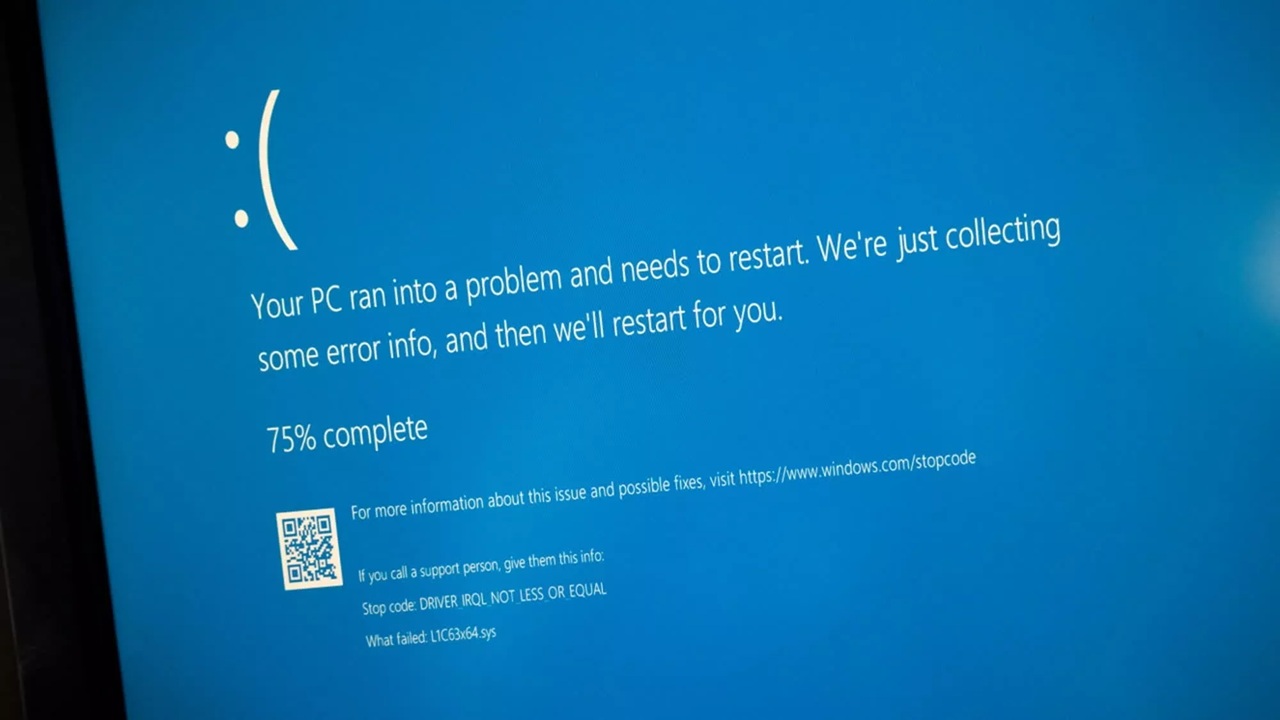
If you have ever seen that familiar “Restart required” message pop up on your Windows PC, you are not alone. For many users, updates feel like an interruption. But behind every Windows security update is a serious effort to protect your data, your privacy, and your system from real threats that exist online today.
In this guide, we will break down the latest Windows security update fixes in a way that actually makes sense. No complicated jargon. No confusing technical terms. Just a clear explanation of what changed, why it matters, and what you should do next.
Why Windows Security Updates Matter More Than Ever
The internet today is not the same as it was a few years ago. Cyber attacks have become more advanced, more frequent, and more targeted. Hackers are no longer just going after big companies. Regular users are now a common target.
Windows is the most widely used operating system in the world. That makes it a prime target for attackers. Every vulnerability that exists in Windows can potentially be used to:
- Steal personal data
- Install malware without your knowledge
- Gain remote access to your system
- Disrupt your daily work
This is exactly why Microsoft releases frequent security updates. These updates are not just “improvements” but critical fixes that close gaps before attackers can exploit them.
What the Latest Windows Security Updates Actually Fix
Each new Windows update includes a list of fixes, often called patches. While the official notes can be technical, the core fixes usually fall into a few important categories.
1. Vulnerability Fixes
The biggest part of any security update is fixing vulnerabilities. These are weaknesses in the system that hackers can use to gain access.
Recent updates have addressed:
- Remote code execution vulnerabilities
- Privilege escalation issues
- Memory corruption bugs
- Network based attack points
For example, a remote code execution vulnerability means someone could run harmful code on your computer without you even clicking anything. Fixing this is critical.
2. Protection Against Zero Day Threats
A zero day vulnerability is one that is discovered before developers have time to fix it. These are especially dangerous because attackers can exploit them immediately.
Microsoft often includes emergency fixes for these threats in their updates. The latest updates have improved detection and blocked known zero day attack methods.
This means your system is better protected against threats that are actively being used in the real world.
3. Improvements to Windows Defender
Windows Defender has become a powerful built in security tool, and recent updates continue to improve it.
Key improvements include:
- Better malware detection accuracy
- Faster scanning performance
- Improved ransomware protection
- Enhanced cloud based threat intelligence
These updates ensure that your system can detect even newer types of threats that traditional antivirus programs might miss.
4. Browser Security Enhancements
Many attacks now happen through web browsers. Microsoft Edge, being deeply integrated with Windows, receives regular security improvements.
Recent fixes include:
- Protection against malicious websites
- Blocking harmful downloads
- Improved phishing detection
- Safer browsing environment
Even if you use another browser, system level fixes still play a role in keeping your browsing secure.
5. Kernel and System Level Fixes
The Windows kernel is the core part of the operating system. If it is compromised, the entire system can be affected.
Updates often include:
- Fixes to kernel vulnerabilities
- Better memory handling
- Stronger system isolation
- Reduced risk of system level exploits
These changes are not visible to users but are essential for long term stability and security.
Common Problems Fixed in Recent Updates
Besides security vulnerabilities, updates also fix everyday issues that users experience.
System Stability Issues
Have you ever experienced random crashes or freezing? Many of these problems are caused by underlying bugs that updates aim to fix.
Recent patches have improved:
- System boot reliability
- Application stability
- Performance under heavy usage
Driver Compatibility Problems
Hardware like printers, graphics cards, and USB devices rely on drivers. Updates often fix compatibility issues between Windows and these drivers.
This leads to:
- Fewer device errors
- Better performance
- Improved hardware support
Network and Connectivity Fixes
Internet related problems can be frustrating. Updates often address:
- WiFi connection drops
- Slow network speeds
- VPN issues
- Bluetooth connectivity problems
How Microsoft Releases Security Updates
Understanding how updates are released can help you stay ahead.
Patch Tuesday
Microsoft typically releases updates on the second Tuesday of every month. This is known as Patch Tuesday.
These updates include:
- Security fixes
- Bug fixes
- Performance improvements
Emergency Updates
Sometimes, critical vulnerabilities require immediate action. In such cases, Microsoft releases updates outside the regular schedule.
These updates are especially important and should not be delayed.
Should You Install Updates Immediately
This is a common question, and the answer is simple. Yes, in most cases you should install updates as soon as possible.
However, there are a few practical tips:
- Back up important data before updating
- Wait a day or two if you want to check for major issues reported by others
- Restart your system after installation
Delaying updates for too long can leave your system exposed.
How to Check for the Latest Windows Updates
If you are not sure whether your system is up to date, here is a quick way to check:
- Open Settings
- Go to Windows Update
- Click on Check for updates
- Install any available updates
Make sure your system is connected to the internet and has enough battery or power.
Signs That You Need to Update Your System
Sometimes your system gives clear signals that updates are needed.
Look out for:
- Frequent security warnings
- Slow system performance
- Apps crashing unexpectedly
- Unusual pop ups or behavior
These could indicate that your system is running outdated software.
Real World Impact of Security Updates
It is easy to ignore updates until something goes wrong. But real world examples show how important they are.
In the past, major attacks like ransomware outbreaks spread quickly because systems were not updated. Users who installed updates on time were protected, while others faced serious consequences.
Security updates are not just technical changes. They are your first line of defense.
Tips to Stay Secure Beyond Updates
While updates are important, they are only one part of staying safe.
Here are a few additional tips:
Use Strong Passwords
Avoid simple passwords. Use a mix of letters, numbers, and symbols.
Enable Two Factor Authentication
This adds an extra layer of security to your accounts.
Avoid Suspicious Links
Do not click on unknown links in emails or messages.
Keep Your Software Updated
Not just Windows 12 Iso Download, but all apps and programs should be updated regularly.
Use Built In Security Tools
Windows Defender and firewall features are powerful when properly enabled.
What to Do If an Update Causes Problems
Sometimes updates can cause unexpected issues. If that happens:
- Restart your system
- Check for newer updates that fix the issue
- Roll back the update if necessary
- Use system restore to revert changes
Most problems are temporary and get fixed quickly.
Windows 10 vs Windows 11 Security Updates
Both versions receive security updates, but there are some differences.
Windows 11
- More advanced security features
- Better hardware based protection
- Improved system architecture
Windows 10
- Still supported with regular updates
- Stable and widely used
- Fewer new security features compared to Windows 11
If security is your top priority, upgrading to Windows 11 can be a good choice if your system supports it.
Final Thoughts
Windows security updates might seem like a small inconvenience, but they play a massive role in protecting your digital life. Every update you install is one less opportunity for attackers to exploit your system.
Think of updates as regular maintenance for your computer. Just like you would not skip servicing your car, you should not ignore system updates either.
By staying updated, you are not just improving performance but also ensuring that your personal data, files, and daily work remain safe from evolving threats.
In a world where cyber risks are constantly growing, keeping your Windows system updated is one of the simplest and most effective steps you can take.
Leave a Reply