
There is something deeply satisfying about turning a standard Windows desktop into a space that feels truly yours. Whether it is a clean minimal workspace for productivity or a vibrant setup full of widgets and live visuals, customization brings personality to your PC. Windows 10 and Windows 11 both offer built in personalization options, but they barely scratch the surface of what is possible.
If you have ever looked at those stunning desktop setups online and wondered how people create them, the answer is simple. They use the right customization tools.
In this guide, we will walk through the best Windows customization tools that can transform your desktop experience. These tools are beginner friendly, powerful, and widely trusted by users who want more control over their system’s look and feel.
Why Customize Windows at All
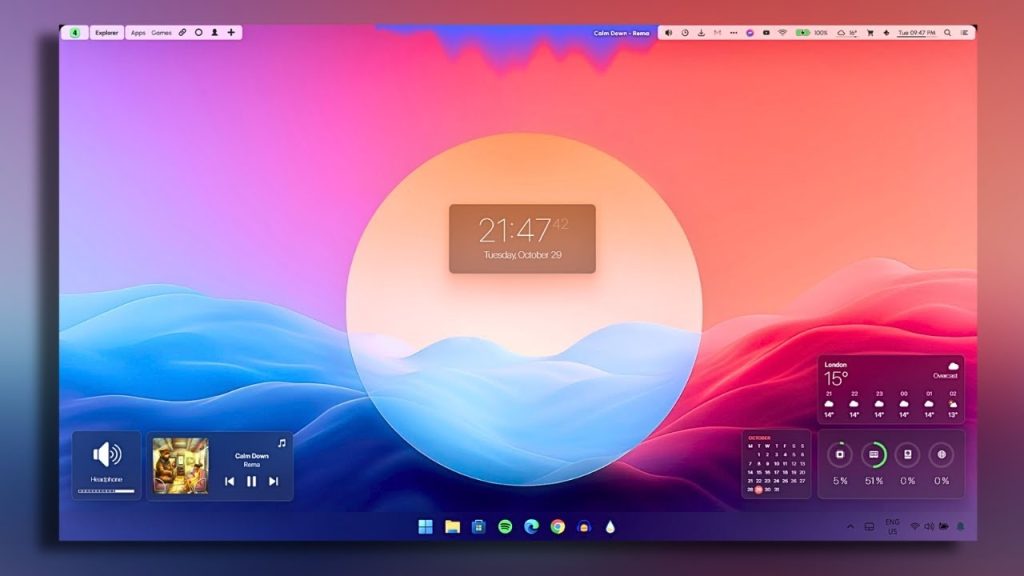
Before jumping into the tools, it helps to understand why customization matters.
A personalized desktop is not just about aesthetics. It can improve your workflow, reduce distractions, and even make daily tasks more enjoyable. For example, placing useful widgets on your screen can save time, while a clean layout can help you focus better.
Many users also customize their systems simply because they enjoy it. It becomes a creative process, similar to designing your own workspace.
1. Rainmeter
Rainmeter is easily one of the most popular desktop customization tools available for Windows. If you have seen desktops with weather widgets, system monitors, or stylish clocks, chances are Rainmeter was used.
It allows you to add customizable skins to your desktop. These skins can display information like CPU usage, RAM usage, weather updates, music players, and more.
What makes Rainmeter special is its flexibility. You can download pre made skins or create your own if you have some technical knowledge.
Key highlights
Highly customizable widgets
Large community support
Thousands of skins available
Lightweight performance
Rainmeter is perfect for users who want full control over their desktop appearance without compromising performance.
2. Start11
Windows 11 introduced a redesigned Start menu, but not everyone liked the changes. Start11 gives you the ability to bring back the classic look or create something entirely new.
It lets you customize the Start menu layout, taskbar style, and overall navigation experience. If you miss the familiarity of older Windows versions, this tool is a great choice.
Key highlights
Custom Start menu layouts
Taskbar customization
Easy to use interface
Works smoothly on Windows 10 and 11
Start11 is ideal for users who want a balance between modern design and classic usability.
3. Wallpaper Engine
Static wallpapers are fine, but animated wallpapers take your desktop to another level. Wallpaper Engine allows you to use live wallpapers that respond to movement, sound, or even system activity.
From subtle animations to full motion backgrounds, the options are nearly endless. It also supports user created wallpapers through its workshop.
Key highlights
Live and interactive wallpapers
Supports video and 3D backgrounds
Huge library of community content
Optimized for performance
If you want your desktop to feel alive, Wallpaper Engine is worth trying.
4. Winaero Tweaker
Winaero Tweaker is designed for users who want deeper control over Windows settings. It provides access to hidden features and advanced customization options that are not available through standard settings.
You can tweak system behavior, adjust privacy settings, and modify visual elements.
Key highlights
Access hidden Windows features
No need for registry editing
Lightweight and efficient
Wide range of tweaks
This tool is especially useful for power users who want to fine tune their system.
5. Lively Wallpaper
Lively Wallpaper is a free alternative to Wallpaper Engine that offers similar functionality. It supports animated wallpapers and allows you to use videos, web pages, or GIFs as your background.
The best part is that it is open source and completely free.
Key highlights
Free and open source
Supports multiple wallpaper formats
Easy to set up
Good performance optimization
For users who want dynamic wallpapers without spending money, Lively Wallpaper is a solid option.
6. TaskbarX
TaskbarX is a simple yet effective tool that centers your taskbar icons and adds smooth animations. It gives your desktop a clean and modern look similar to macOS or updated Windows designs.
While Windows 11 already centers icons by default, TaskbarX offers more customization options.
Key highlights
Center taskbar icons
Add smooth animations
Lightweight tool
Custom positioning options
It is perfect for users who want a minimal and stylish taskbar.
7. Fences
Fences helps you organize your desktop icons by grouping them into sections. If your desktop often feels cluttered, this tool can make a big difference.
You can create labeled areas and automatically sort icons based on type.
Key highlights
Organize desktop icons
Create custom groups
Hide icons instantly
Improve productivity
Fences is ideal for users who want a clean and organized workspace.
8. WindowBlinds
WindowBlinds allows you to completely change the look of Windows by applying custom skins. This includes window borders, buttons, and overall interface design.
It goes beyond simple themes and gives you full control over the visual style of your system.
Key highlights
Apply custom visual styles
Wide range of skins
Easy customization
Regular updates
If you want your Windows system to look entirely different, this tool delivers.
9. PowerToys
PowerToys is developed by Windows 12 Iso Download and includes a collection of utilities that enhance productivity and customization.
It includes features like FancyZones for window management, keyboard remapping, and file preview enhancements.
Key highlights
Official Microsoft tool
Improves productivity
Regular updates
Free to use
PowerToys is not just about looks. It also improves how you interact with your system daily.
10. TranslucentTB
TranslucentTB makes your taskbar transparent or blurred, giving your desktop a modern and polished appearance.
It works seamlessly in the background and does not consume many resources.
Key highlights
Transparent taskbar effects
Simple setup
Lightweight tool
Compatible with Windows 10 and 11
This is a small tool, but it adds a noticeable visual upgrade.
How to Choose the Right Tool
With so many options available, choosing the right customization tools depends on your needs.
If you want visual enhancements, focus on tools like Rainmeter and Wallpaper Engine.
If you prefer better organization, Fences and TaskbarX are great choices.
For advanced system control, Winaero Tweaker is a strong option.
If productivity matters most, PowerToys is essential.
You do not need to install everything. Start with one or two tools and build your setup gradually.
Tips for Safe Customization
Customization is fun, but it should also be done carefully.
Always download tools from official sources
Create a restore point before major changes
Avoid installing too many tools at once
Keep your system updated
These simple steps can prevent issues and ensure a smooth experience.
Final Thoughts
Customizing Windows 10 and 11 is more than just changing wallpapers or colors. It is about creating a workspace that feels comfortable, efficient, and uniquely yours.
Whether you are a beginner experimenting with widgets or an advanced user designing a fully customized setup, the tools listed above can help you achieve your vision.
Start small, explore different styles, and enjoy the process. Over time, you will discover what works best for you and your daily workflow.
Your desktop is something you look at every day. With the right customization tools, it can become a space that inspires you instead of just serving as a default screen.
Leave a Reply