Blog

  • Windows 11 Hidden Features 2026 Microsoft Didn’t Reveal

    Windows 11 Hidden Features 2026 Microsoft Didn’t Reveal

    Windows 11 has evolved far beyond what most users see on the surface. While Microsoft continues to promote new updates and polished features, there is a whole layer of hidden functionality that rarely gets attention. These are the tools, shortcuts, and settings that quietly exist in the background, waiting for curious users to discover them.

    In 2026, Windows 11 has become smarter, faster, and more integrated with AI. But interestingly, some of its most useful capabilities are not highlighted in official announcements. Whether you are a casual user, a student, or someone who spends hours on a computer daily, these hidden features can make a noticeable difference in your workflow.

    This guide explores the lesser known Windows 11 features that Microsoft did not actively promote. These are practical, real world tools that can help you save time, improve performance, and take full control of your system.

    1. God Mode Still Exists and It Is More Powerful Now
    The so called “God Mode” is not new, but in 2026 it has quietly expanded. It provides access to hundreds of advanced settings in one place, which are otherwise scattered across the system.

    How to Enable It

    Create a new folder on your desktop and rename it to:

    GodMode.{ED7BA470-8E54-465E-825C-99712043E01C}

    Once done, the folder icon changes, and opening it reveals a massive list of settings.

    Why It Matters

    Instead of searching through multiple menus, you can directly access tools like backup settings, network configurations, and system diagnostics. It feels like a control panel on steroids.

    2. Hidden AI Assistant Shortcuts Beyond Copilot

    Most people know about Copilot, but very few explore its deeper integrations. There are hidden keyboard shortcuts and background triggers that make it more powerful.

    Secret Shortcut Trick

    Press:
    Win + Alt + A

    This opens a lightweight AI panel that works faster than the full Copilot interface.

    Real Benefit

    You can summarize text, generate quick replies, or even adjust system settings using natural language without interrupting your workflow.

    3. Advanced Clipboard History with Smart Filtering

    Clipboard history is not new, but Microsoft has enhanced it silently.

    How to Access

    Press:
    Win + V

    What Is New in 2026

    • Smart filtering based on content type
    • Auto grouping of copied items
    • Quick paste suggestions based on context

    Why You Will Love It

    If you copy and paste frequently, this feature saves a surprising amount of time. It almost feels like your clipboard understands what you want next.

    4. Hidden Performance Boost Mode

    Windows 11 includes a performance optimization mode that is not easily visible.

    How to Activate

    Search for “Power Plan” and enable Ultimate Performance Mode using command prompt:

    powercfg -duplicatescheme e9a42b02-d5df-448d-aa00-03f14749eb61

    What It Does

    • Reduces system latency
    • Improves CPU performance
    • Minimizes background interruptions

    Who Should Use It

    Gamers, developers, and anyone using heavy software will notice smoother performance.

    5. Secret File Explorer Tabs Customization

    File Explorer tabs are visible, but deeper customization options are hidden.

    Hidden Tweaks

    • Change tab behavior using registry settings
    • Enable persistent tabs after restart
    • Customize tab grouping

    Why It Is Useful

    If you work with multiple folders daily, this turns File Explorer into a much more powerful tool, similar to a web browser.

    6. Hidden Screen Recording Tool Inside Snipping Tool

    Most users think Snipping Tool is only for screenshots, but it now includes a built in screen recorder.

    How to Use

    Open Snipping Tool and switch to video mode.

    Hidden Advantage

    Unlike third party tools, this recorder is lightweight and does not slow down your system.

    Real Use Case

    Perfect for creating tutorials, recording bugs, or capturing quick clips without installing extra software.

    7. Virtual Desktop Advanced Controls

    Virtual desktops are not new, but their hidden controls are often ignored.

    Hidden Features

    • Rename desktops with custom labels
    • Assign specific apps to desktops
    • Set different wallpapers for each desktop

    Shortcut You Should Know

    Press:
    Win + Ctrl + Left or Right Arrow

    Why It Matters

    You can separate work, personal, and entertainment spaces, making your system feel more organized.

    8. Background App Management Dashboard

    Windows 11 quietly added a deeper level of control over background apps.

    Where to Find It

    Settings > Privacy and Security > Background Apps

    Hidden Controls

    • Limit apps based on battery usage
    • Force stop apps running in the background
    • Monitor hidden processes

    Real Benefit

    Improves battery life and system speed without needing third party tools.

    9. Hidden Storage Sense Automation Rules

    Storage Sense is widely known, but its advanced automation settings are not.

    What You Can Do

    • Auto delete temporary files based on usage
    • Schedule cleanup frequency
    • Manage downloads folder intelligently

    Why It Is Important

    Keeps your system clean without manual effort, especially useful if you often download files.

    10. Secret Keyboard Shortcuts That Save Hours

    Windows 11 includes dozens of shortcuts that are rarely used.

    Powerful Hidden Shortcuts

    • Win + Shift + S for quick snipping
    • Win + Z for snap layouts
    • Win + Ctrl + D to create a new desktop
    • Win + X for power user menu

    Why You Should Care

    Learning just a few of these can significantly speed up daily tasks.

    11. Hidden Network Reset and Optimization Tool

    If your internet feels slow, there is a built in fix that many users never discover.

    How to Access

    Settings > Network and Internet > Advanced Network Settings

    Hidden Feature

    Network Reset completely refreshes your connection settings.

    Real World Benefit

    Fixes many connectivity issues without needing technical knowledge.

    12. Focus Sessions with Deep Productivity Mode

    Focus Sessions are visible, but the deeper functionality is hidden.

    What Is New

    • Integration with task lists
    • Background noise reduction
    • Smart break reminders

    Why It Works

    It helps maintain concentration without distractions, especially during long work sessions.

    13. Hidden Privacy Dashboard Insights

    Windows 11 now includes a privacy dashboard that shows how apps use your data.

    Where to Find It

    Settings > Privacy and Security

    Hidden Insight

    You can see which apps accessed your microphone, camera, or location recently.

    Why It Matters

    Gives you full control over your digital privacy.

    14. Dynamic Refresh Rate Hidden Control

    Some devices support dynamic refresh rate, but it is not always enabled.

    How to Check

    Settings > System > Display > Advanced Display

    Benefit

    • Saves battery
    • Improves scrolling smoothness

    Best For

    Laptop users who want both performance and efficiency.

    15. Hidden Developer Settings for Power Users

    Even if you are not a developer, these settings can be useful.

    How to Enable

    Settings > System > For Developers

    Hidden Options

    • Enable device portal
    • Advanced file sharing
    • App sideloading

    Why It Is Useful

    Gives you more control over how apps behave on your system.

    16. Secret Startup Optimization Panel

    Startup apps can slow down your system, but there is a deeper panel to manage them.

    Where to Find It

    Task Manager > Startup Apps

    Hidden Feature

    Impact level analysis shows which apps affect boot time the most.

    Real Benefit

    Helps your PC start faster with minimal effort.

    17. Hidden Accessibility Features That Help Everyone

    Accessibility tools are not just for specific users. They can improve usability for anyone.

    Examples

    • Live captions for any audio
    • Voice typing with AI accuracy
    • Magnifier with advanced controls

    Why It Is Underrated

    These features can make everyday tasks easier and more efficient.

    18. Windows Backup Hidden Controls

    Backup settings have expanded quietly.

    What You Can Do

    • Backup specific folders only
    • Sync settings across devices
    • Restore apps automatically

    Why It Matters

    Protects your data without complicated setup.

    19. Hidden Gaming Performance Tools

    Windows 11 includes built in gaming tools that many users ignore.

    Features

    • Game Bar performance overlay
    • FPS monitoring
    • Resource usage tracking

    Why Gamers Should Care

    Helps optimize performance without installing extra software.

    20. Secret Update Controls

    Windows updates are often automatic, but there are hidden ways to control them.

    Hidden Options

    • Pause updates for longer periods
    • Set active hours more precisely
    • Limit update bandwidth

    Real Benefit

    Prevents updates from interrupting important work.

    Final Thoughts

    Windows 11 in 2026 is not just about what Microsoft shows on stage or highlights in updates. The real power lies beneath the surface. These hidden features are not tricks or hacks. They are built into the system, waiting to be used.

    Many users stick to basic functionality simply because they do not know what else is available. Once you start exploring these features, your experience changes completely. Tasks become faster, your system feels more responsive, and you gain better control over how everything works.

    If you want to get the most out of your Download Windows 12 Iso, it is worth spending some time experimenting with these lesser known tools. You might be surprised at how much more your computer can do.
  • Windows 11 Testing AI File Explorer: What to Expect and Why It Matters

    Windows 11 Testing AI File Explorer: What to Expect and Why It Matters

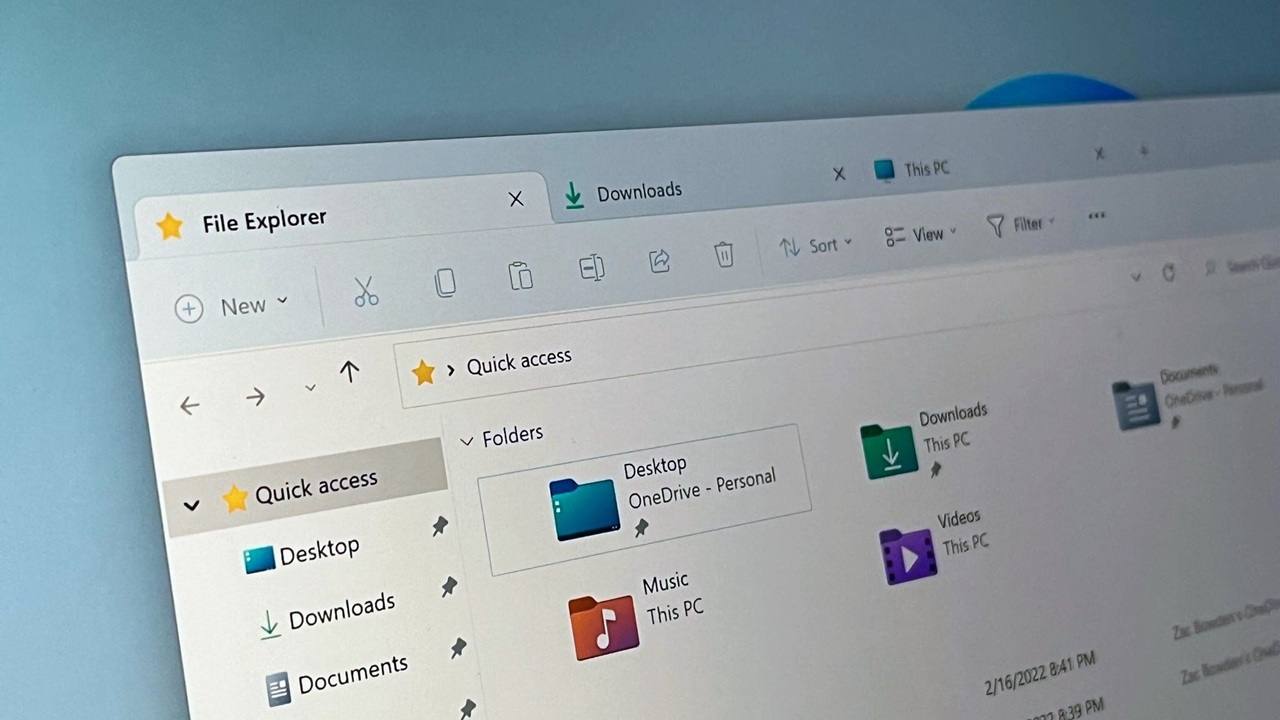
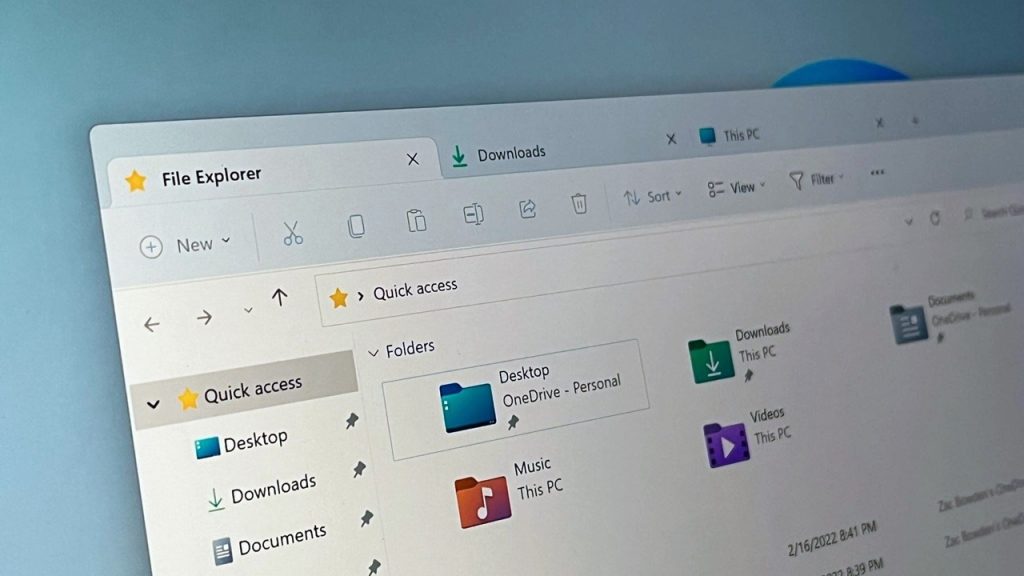
    If you have been using Windows for a while, you already know that File Explorer is one of the most used tools in the entire operating system. Whether you are opening documents, organizing photos, or searching for files, it sits at the center of everyday tasks. But let’s be honest, it has not changed much in terms of intelligence. It still depends heavily on manual navigation and basic search.

    That may finally be about to change.

    Microsoft is now testing an AI powered File Explorer in Windows 11, and it could redefine how users interact with their files. Instead of just browsing folders, you may soon be able to ask your computer to find, organize, and even understand your content.

    This is not just another visual update. It signals a deeper shift toward AI integrated workflows that aim to save time and reduce frustration. In this article, we will explore what this new AI File Explorer is, what features are expected, how it works, and why it matters for everyday users.

    What Is AI File Explorer in Windows 11

    Windows 11

    The AI File Explorer is essentially an upgraded version of the traditional File Explorer, enhanced with artificial intelligence capabilities. Instead of relying only on file names and folder structures, it uses contextual understanding to help you locate and manage files.

    Think of it like this. Today, if you want to find a document, you either remember its name or the folder where it is stored. With AI, you could search using natural language like:

    • “Find the presentation I worked on last week about marketing”
    • “Show all images I downloaded yesterday”
    • “Open the PDF I edited this morning”

    The system interprets your intent rather than just matching keywords. This is where the biggest shift happens.

    Microsoft has been gradually integrating AI into Windows through Copilot and other features, so bringing this capability to File Explorer is a logical next step.

    Key Features Expected in AI File Explorer

    1. Natural Language Search

    One of the most talked about features is the ability to search using everyday language. You will not need exact file names anymore.

    For example, instead of typing “report_final_v3.docx”, you can simply type:

    “Final report I finished yesterday”

    The AI will scan metadata, timestamps, and even file content to deliver accurate results.

    This alone can save hours over time, especially for users who deal with large volumes of files.

    2. Context Aware Suggestions

    The AI File Explorer is expected to offer smart suggestions based on your activity.

    If you frequently open certain files together, it might recommend them as a group. If you are working on a project, it could surface related documents, images, and folders automatically.

    It is similar to how streaming platforms recommend content, but applied to your personal files.

    3. Automatic File Organization

    Keeping files organized is something most people struggle with. Over time, desktops and folders get cluttered.

    With AI, Windows could automatically categorize files based on type, usage, and context. For example:

    • Work related documents grouped together
    • Personal photos sorted by events or dates
    • Downloads automatically categorized

    This reduces the need for manual sorting and helps maintain a cleaner system.

    4. Smart File Previews

    Another expected improvement is enhanced previews powered by AI.

    Instead of opening files one by one, you might see summaries or previews directly within File Explorer. For example:

    • A quick summary of a document
    • Key highlights from a PDF
    • Thumbnail previews with context for images

    This makes it easier to identify files without opening them.

    5. Deep Integration with Copilot

    Microsoft Copilot is already becoming a core part of Windows 11. The AI File Explorer is likely to be tightly integrated with it.

    You might be able to:

    • Ask Copilot to locate files
    • Get suggestions on what to do with files
    • Automate tasks like renaming or organizing

    This creates a more unified AI experience across the operating system.

    6. File Content Understanding

    AI File Explorer is not limited to file names and metadata. It can analyze the content inside files.

    For example:

    • Recognize topics inside documents
    • Identify objects in images
    • Understand text inside PDFs

    This allows for much more powerful search and organization capabilities.

    How AI File Explorer Works

    At its core, the system relies on machine learning models that process both metadata and file content.

    Here is a simplified breakdown:

    1. Data Analysis
      The AI scans files for names, dates, types, and internal content.
    2. Context Building
      It builds a context around your usage patterns, such as frequently accessed files or recent activities.
    3. Natural Language Processing
      When you enter a query, the system interprets your intent rather than just matching keywords.
    4. Result Ranking
      It ranks results based on relevance, recency, and context.

    Most of this processing may happen locally on your device for speed and privacy, although some features could use cloud based AI.

    Real World Benefits for Users

    Saves Time

    Searching for files can be frustrating, especially when you cannot remember exact names. AI reduces this friction by understanding intent.

    Reduces Clutter

    Automatic organization means fewer messy folders and a cleaner workspace.

    Improves Productivity

    Quick access to relevant files helps you stay focused and work more efficiently.

    Beginner Friendly

    Not everyone is comfortable managing file systems. AI makes it easier for new users to navigate their files.

    Potential Concerns and Challenges

    While the AI File Explorer sounds promising, it is not without concerns.

    Privacy Issues

    Since AI analyzes file content, users may worry about how their data is handled.

    Microsoft will need to ensure:

    • Strong local processing options
    • Clear privacy settings
    • Transparency about data usage

    Performance Impact

    AI features can consume system resources. On older devices, this might lead to slower performance.

    Microsoft will likely optimize the feature, but hardware requirements could increase.

    Accuracy Limitations

    AI is not perfect. There may be cases where:

    • Search results are incorrect
    • Files are miscategorized
    • Suggestions feel irrelevant

    Over time, updates and user feedback should improve accuracy.

    When Will AI File Explorer Be Released

    As of now, the AI File Explorer is in testing, likely within Windows Insider builds.

    Microsoft typically rolls out major features in phases:

    • Early testing with Insider users
    • Gradual rollout in updates
    • Full release in a major Windows update

    Based on current trends, we may see a wider release sometime in late 2026 or early 2027.

    However, timelines can change depending on testing results and user feedback.

    How to Try It Early

    If you want to experience new features before they are publicly released, you can join the Windows Insider Program.

    Steps include:

    1. Go to Windows Settings
    2. Navigate to Windows Update
    3. Select Windows Insider Program
    4. Choose a channel such as Dev or Beta

    Keep in mind that Insider builds may have bugs and are not always stable.

    Comparison with Traditional File Explorer

    FeatureTraditional File ExplorerAI File Explorer
    SearchKeyword basedNatural language
    OrganizationManualAutomatic
    SuggestionsNoneContext aware
    File UnderstandingLimitedDeep content analysis
    ProductivityBasicEnhanced

    This comparison shows how big of a leap AI integration could be.

    Why This Matters for the Future of Windows

    The introduction of AI into File Explorer is more than just a feature update. It reflects a broader shift in computing.

    Operating systems are moving from tools that require commands to assistants that understand intent.

    In the future, you may not need to navigate folders at all. Instead, you will simply ask your computer for what you need.

    This aligns with Microsoft’s vision of integrating AI across all aspects of Windows, from search to productivity tools.

    Expert Insight and Industry Perspective

    Many tech experts see this as a natural evolution.

    With the rise of AI tools like ChatGPT and Copilot, users are becoming more comfortable interacting with systems using natural language.

    Competitors like Apple and Google are also investing heavily in AI driven file management and search.

    This means we can expect rapid innovation in this space over the next few years.

    Tips to Prepare for AI Powered File Management

    Even before AI File Explorer becomes mainstream, you can take steps to make the transition smoother:

    • Keep your files organized with clear naming conventions
    • Remove duplicate or unnecessary files
    • Use consistent folder structures
    • Regularly update your system

    These habits will help AI systems work more effectively.

    Conclusion

    The AI powered File Explorer in Windows 11 represents a significant step forward in how we interact with our files. By introducing natural language search, smart organization, and contextual understanding, Microsoft is aiming to simplify one of the most fundamental aspects of computing.

    While there are still challenges to address, the potential benefits are hard to ignore. Faster searches, better organization, and a more intuitive experience could make everyday tasks much easier.

    If you have ever struggled to find a file or keep your folders organized, this update could feel like a major upgrade.

    As testing continues, it will be interesting to see how Microsoft refines these features and how users respond. One thing is clear: the future of file management is becoming smarter, and Windows 11 is leading that change.

  • Michael Patrick Death at 35 Full Story

    Michael Patrick Death at 35 Full Story

    The entertainment world woke up to heartbreaking news as actor Michael Patrick, known for his connection to Game of Thrones, has passed away at the age of 35. The sudden nature of his death has left fans, colleagues, and the wider film community in shock. At an age where many actors are just beginning to reach their peak, his untimely passing feels especially difficult to process.

    Michael Patrick may not have been the biggest name on screen, but he built a reputation for delivering meaningful performances that stayed with viewers. His appearance in Game of Thrones introduced him to a global audience, and from there, he steadily carved his place in the industry.

    In this article, you will find everything about his life, career, cause of death, and the reactions pouring in from fans and celebrities who are mourning his loss.

    Who Was Michael Patrick

    Michael Patrick was a talented actor whose dedication to his craft earned him respect within the entertainment industry. Born and raised in a modest background, he developed a passion for storytelling at a young age. Friends from his early years often recall how he would participate in school plays with remarkable confidence, even before he had formal training.

    He was believed to be of Western origin and later moved to pursue acting professionally. Like many actors, his journey was not instant success. He worked through auditions, small roles, and rejections before landing opportunities that helped him grow.

    What set Michael apart was his natural screen presence. He had a way of making even smaller roles feel important. That authenticity made audiences connect with him, and casting directors began to take notice.

    Michael Patrick in Game of Thrones

    Michael Patrick’s connection to Game of Thrones became a defining moment in his career. While he was not part of the main cast, his role in the series brought him into one of the most iconic television universes ever created.

    He portrayed a supporting character who appeared in key moments, contributing to the complex world that the show is known for. Even in limited screen time, he managed to leave an impression. His performance felt grounded and believable, which is exactly what Game of Thrones required from its cast.

    Fans of the show often appreciate actors who can bring depth to side characters, and Michael did exactly that. His scenes may not have dominated episodes, but they added to the realism and emotional layers of the story.

    Over time, viewers began recognizing him beyond the show, which helped him transition into other projects.

    Career Highlights Beyond Game of Thrones

    After his appearance in Game of Thrones, Michael Patrick continued to build his career with a mix of television and film roles. He appeared in several independent projects where he had the chance to take on more challenging and diverse characters.

    His work in smaller productions often received praise for its sincerity. He did not rely on overacting or dramatic exaggeration. Instead, he focused on subtle expressions and emotional honesty, which made his performances feel real.

    While he may not have collected major awards, he earned something equally valuable respect from directors, co actors, and audiences. Those who worked with him frequently described him as committed and easy to collaborate with.

    Michael was also known to support creative storytelling, often choosing roles that had depth rather than simply chasing fame. That decision shaped his career into one that valued quality over quantity.

    Cause of Death

    As of now, official details regarding Michael Patrick’s cause of death remain limited. Early reports suggest that authorities and representatives are handling the situation carefully, and a formal statement is expected to provide clarity.

    In moments like these, speculation tends to spread quickly online. However, it is important to rely only on confirmed information. Several sources close to the actor have requested privacy for his family while they cope with the loss.

    There has been no verified confirmation about any illness or external circumstances linked to his passing. Until an official announcement is made, it is best to approach the topic with respect and patience.

    The sudden loss has reminded many people how fragile life can be, especially in an industry that often hides personal struggles behind public appearances.

    Family and Personal Life

    Michael Patrick kept much of his personal life away from the spotlight. Unlike many celebrities, he did not frequently share details about his family or relationships on social media.

    Those who knew him personally describe him as warm, thoughtful, and grounded. He valued close friendships and maintained strong connections with people from his early life.

    While there is limited public information about his immediate family, it is clear that he had a support system that meant a lot to him. His colleagues often mentioned how he would talk about his loved ones with genuine affection.

    Off screen, he was known to enjoy simple activities, including reading, traveling, and exploring creative ideas beyond acting.

    Reactions from Fans and Celebrities

    The news of Michael Patrick’s passing quickly spread across social media, where fans began sharing their grief and memories. Many expressed disbelief that someone so young could be gone so suddenly.

    Fans of Game of Thrones revisited his scenes, posting clips and messages that highlighted how even small roles can leave a lasting impact. Hashtags related to his name began trending as people shared tributes.

    Several actors and industry professionals also spoke about his loss. Co stars described him as dedicated and kind, someone who brought positive energy to every set he worked on.

    One common theme across all reactions is that Michael was respected not just for his talent, but for his character as a person. That combination made his loss even more painful for those who knew him.

    Legacy and Impact

    Michael Patrick’s career may have been shorter than expected, but it still carries a meaningful legacy. He represented a type of actor who focused on authenticity rather than fame.

    His work reminds aspiring actors that every role matters. Even a brief appearance in a major show can open doors and create lasting impressions if performed with sincerity.

    Beyond his performances, he leaves behind memories for those who worked with him. Stories of his professionalism and kindness continue to surface, shaping how he will be remembered.

    In an industry often driven by recognition, Michael’s journey stands as an example of dedication to the craft itself.

    Lesser Known Facts About Michael Patrick

    There are several aspects of Michael Patrick’s life that many fans may not know. Before fully committing to acting, he explored different creative interests, including writing and theater production.

    He was also known to spend time mentoring younger actors, offering advice based on his own experiences in the industry. This side of him rarely made headlines, but it had a real impact on those he helped.

    Another interesting detail is that he preferred smaller, meaningful projects over big commercial roles. This choice reflected his passion for storytelling rather than just visibility.

    People who worked behind the scenes often recall how he would take time to understand every detail of his character, no matter how small the role.

    Frequently Asked Questions

    How did Michael Patrick die
    At the time of writing, the exact cause of Michael Patrick’s death has not been officially confirmed. Authorities and his representatives are expected to release more details when appropriate.

    What role did he play in Game of Thrones
    Michael Patrick appeared in a supporting role in Game of Thrones. While not part of the main cast, his performance contributed to the depth and realism of the series.

    How old was Michael Patrick
    He was 35 years old at the time of his passing, which has made the news especially shocking for fans and the industry.

    Was he active recently
    Yes, Michael Patrick was still involved in acting and creative projects. He continued to work on various roles, particularly in independent productions.

    Why is his death trending online
    His death has gained attention due to his connection with Game of Thrones and the unexpected nature of his passing. Fans and celebrities are sharing tributes across social media.

    Conclusion

    Michael Patrick’s passing at just 35 is a reminder of how unpredictable life can be. While his time in the spotlight was not the longest, it was meaningful in ways that continue to resonate with audiences.

    He leaves behind performances that reflect honesty and dedication, along with memories shared by those who knew him personally. As fans revisit his work and colleagues share their stories, it becomes clear that his impact goes beyond the screen.

    In the end, Michael Patrick will be remembered not just as an actor, but as a person who approached his craft with sincerity and respect.

  • Student Pedestrian Safety Technology Innovation

    Student Pedestrian Safety Technology Innovation

    Every day, thousands of people step out for a simple walk and never imagine the risks waiting at a crosswalk. Yet pedestrian accidents are rising across the world, especially in fast growing urban areas where traffic and technology often move faster than safety measures. It is no longer just a statistic. It is a real and growing concern affecting families, communities, and entire cities.

    Amid this challenge, a computer science student has developed an innovative solution designed to make roads safer for pedestrians. What started as a small academic idea has quickly turned into a promising technology that could reshape how we think about road safety.

    This story matters right now because cities are searching for smarter and more effective ways to protect people. In this article, you will learn about the problem, the student behind the idea, how the technology works, and why it has the potential to save lives.

    The Growing Problem of Pedestrian Safety

    Technology

    Pedestrian safety has become a serious issue in recent years. According to global transport data, pedestrian fatalities account for a significant percentage of road deaths, especially in densely populated regions. In countries with rapid urban expansion, the numbers continue to climb as more vehicles share limited road space.

    Several factors contribute to these accidents. Distracted driving caused by mobile phone use remains one of the leading causes. Poor infrastructure such as lack of sidewalks, unclear crossings, and insufficient street lighting also puts pedestrians at risk. Low visibility during nighttime or bad weather further increases the danger.

    Despite existing safety measures like traffic signals and zebra crossings, they often fail to prevent accidents completely. Many systems rely heavily on human attention, which can be inconsistent. This gap between infrastructure and real time awareness highlights the urgent need for smarter, technology driven solutions.

    Meet the Student Behind the Innovation

    The innovation comes from a computer science student who saw the problem not just as a technical challenge but as a personal concern. Studying at a leading university, the student focused on artificial intelligence and real world applications during their academic journey.

    The idea was sparked after witnessing a near accident involving a pedestrian at a busy intersection. That moment led to a simple question. What if technology could actively warn both drivers and pedestrians before danger occurs

    Developing the solution was not easy. Limited resources, technical complexities, and the challenge of testing in real environments made the process difficult. Still, persistence and curiosity drove the project forward, eventually turning it into a working prototype with real potential.

    What Is the New Pedestrian Safety Technology

    The new pedestrian safety technology is a smart system that combines artificial intelligence, sensors, and real time data analysis to prevent accidents before they happen. Unlike traditional systems that rely only on fixed signals, this innovation actively monitors both pedestrian movement and vehicle behavior.

    At its core, the system uses sensors placed at intersections or embedded in wearable devices. These sensors detect motion, speed, and proximity. The data is then processed using AI algorithms that predict potential collision risks within seconds.

    One of the key features is its ability to send instant alerts. Pedestrians receive warnings through a mobile app or wearable device, while drivers are alerted through connected vehicle systems or roadside displays. This dual communication approach ensures that both sides are aware of danger.

    Another unique aspect is adaptability. The system learns from traffic patterns over time, improving its accuracy and response speed. It can also function in low visibility conditions, making it effective during nighttime or bad weather.

    How This Technology Improves Pedestrian Safety

    What makes this technology stand out is its proactive approach. Instead of reacting after a mistake occurs, it works to prevent the mistake in the first place. Imagine a pedestrian about to cross the road while a speeding vehicle approaches from a blind spot. The system detects this situation instantly and sends alerts to both parties.

    In real life scenarios, this can mean the difference between a close call and a serious accident. The technology acts like an extra layer of awareness that never gets distracted or tired.

    Compared to traditional safety systems, which depend on fixed signals or human judgment, this solution is dynamic and responsive. It adjusts to real time conditions, making it far more effective in complex urban environments where unpredictability is common.

    Testing, Results, and Early Success

    Initial testing of the prototype has shown promising results. The student conducted trials in controlled environments as well as selected real world locations. During these tests, the system successfully identified potential collision scenarios and issued timely alerts.

    Early data indicates a noticeable reduction in near miss incidents when the system is active. Users who participated in the testing phase reported feeling more aware and confident while navigating busy streets.

    Experts who reviewed the prototype praised its practical approach and real world relevance. While it is still in the early stages, the positive feedback suggests that the technology has strong potential for further development and wider adoption.

    Potential Impact on Cities and Smart Infrastructure

    As cities continue to evolve into smart ecosystems, technologies like this could play a major role in shaping safer urban environments. Integrating pedestrian safety systems into existing traffic infrastructure can create a more connected and responsive network.

    For example, traffic signals could adjust based on real time pedestrian activity, while citywide systems could monitor high risk zones and deploy additional safety measures where needed. This level of integration can significantly improve overall road safety.

    Governments and urban planners stand to benefit from such innovations. By reducing accidents, cities can lower healthcare costs, improve public confidence, and create more walkable spaces. In the long run, this contributes to healthier and more sustainable communities.

    Challenges and Limitations

    Despite its potential, the technology is not without challenges. One of the main concerns is scalability. Implementing the system across entire cities requires significant investment and coordination.

    Privacy is another important issue. Since the system relies on data collection, ensuring that user information is protected is essential. Technical limitations such as sensor accuracy and connectivity in certain areas also need to be addressed.

    Additionally, public adoption may take time. People need to trust and understand the technology before it becomes widely accepted. These challenges highlight the need for continuous improvement and careful planning.

    Future Plans and Development Roadmap

    The student behind the project has ambitious plans for the future. Upcoming updates aim to enhance the accuracy of the AI system and expand compatibility with different devices and vehicles.

    There is also a focus on partnerships. Collaborating with local governments, tech companies, and research institutions could help bring the technology to a larger audience. Funding opportunities are being explored to support further development and testing.

    The long term vision is to create a globally adaptable system that can be implemented in cities of all sizes. With the right support, this innovation could become a standard feature in modern urban infrastructure.

    Expert Opinions and Industry Reactions

    Industry experts have shown growing interest in the project. Some see it as a practical step toward reducing road accidents through technology. Others highlight its potential role in the development of smart cities.

    A transportation analyst noted that solutions like this bridge the gap between human behavior and automated systems. Another expert emphasized the importance of early innovation, especially from students who bring fresh perspectives to complex problems.

    The positive response from the tech community adds credibility to the project and reinforces its relevance in today’s rapidly evolving world.

    Why Student Innovations Matter in Tech

    Student driven innovations have always played a key role in shaping the future of technology. Without the pressure of commercial expectations, students often explore bold ideas that lead to meaningful breakthroughs.

    There are many examples of successful technologies that began as academic projects. These innovations show that creativity and determination can overcome limited resources.

    Encouraging such efforts in education is essential. When students are given the tools and support to experiment, they can develop solutions that address real world problems. This pedestrian safety technology is a clear example of how young innovators can make a lasting impact.

    Conclusion

    Pedestrian safety is a challenge that affects millions of people every day. While traditional systems have helped to some extent, they are no longer enough in today’s fast paced world. The innovation developed by this computer science student offers a fresh and practical approach to solving this problem.

    By combining artificial intelligence, sensors, and real time alerts, the technology provides a smarter way to prevent accidents before they happen. Its potential impact on cities, infrastructure, and everyday life is significant.

    As development continues, this solution could become a vital part of modern road safety systems. It serves as a reminder that meaningful change often starts with a single idea and the determination to bring it to life.

    FAQs

    What is pedestrian safety technology
    Pedestrian safety technology refers to systems designed to protect people on foot by using tools like sensors, artificial intelligence, and real time alerts to prevent accidents.

    How does AI help reduce road accidents
    AI analyzes data from traffic, movement, and surroundings to predict potential risks and send warnings before a collision occurs, improving reaction time for both drivers and pedestrians.

    Can this technology be used globally
    Yes, with proper adaptation to local infrastructure and regulations, this type of technology can be implemented in cities around the world.

    Is it affordable for cities
    Costs may vary depending on scale, but as technology advances and adoption increases, it is expected to become more affordable for urban development projects.

  • Windows 11 Build 26220.8165 Beta Update Guide

    Windows 11 Build 26220.8165 Beta Update Guide

    Microsoft has rolled out a fresh update for Windows enthusiasts and testers: Windows 11 Insider Preview Build 26220.8165, now available in the Beta Channel. If you’re part of the Insider Program, this build is another step forward in refining the overall Windows 11 experience before it reaches the general public.

    This update is mainly targeted at users who like to stay ahead of the curve—developers, testers, and curious users who want early access to upcoming features. While it may not introduce groundbreaking changes at first glance, builds like this play a crucial role in polishing performance, fixing bugs, and shaping the future of Windows.

    For everyday users, this update matters because it gives a glimpse into what’s coming next. It’s not just about features—it’s about stability, speed, and the little improvements that make daily computing smoother.

    What Is Windows 11 Insider Preview Build 26220.8165?

    Build 26220.8165

    Windows Insider Preview builds are early versions of updates released by Microsoft to test new features, improvements, and fixes before they become widely available. These builds are part of the Windows Insider Program, which allows users to experience upcoming changes and provide feedback.

    The Beta Channel is one of the more stable branches within the Insider Program. Unlike Dev Channel builds, which can be experimental, Beta builds are closer to final releases. This makes them ideal for users who want early access without dealing with too many major bugs.

    Build 26220.8165 belongs to the 26220 series, which is part of Microsoft’s ongoing development cycle for Windows 11. These builds focus on refining existing features rather than introducing drastic changes, ensuring that the operating system continues to improve steadily.

    Key Highlights of Build 26220.8165

    This build focuses on enhancing the overall user experience rather than introducing flashy new features. Microsoft has clearly prioritized stability, reliability, and incremental improvements.

    One of the key highlights is improved system performance, especially in areas like responsiveness and background task handling. Users may notice smoother transitions and quicker load times in everyday tasks.

    Another important focus is bug fixing. Microsoft has addressed several issues reported in previous builds, particularly those affecting system stability and UI consistency. This helps create a more polished experience for users testing the update.

    Security and reliability have also been given attention. While not always visible, these improvements are critical in ensuring a safe and stable operating system.

    Overall, Build 26220.8165 continues the trend of refining Windows 11, making it more dependable and user-friendly with each update.

    New Features and Improvements

    While this build is more about refinement than reinvention, there are still a number of meaningful improvements worth noting.

    First, Microsoft has made subtle UI enhancements across the system. These changes may not stand out immediately, but they contribute to a cleaner and more consistent look. Elements such as menus, system dialogs, and transitions feel more polished and aligned with the overall Windows 11 design language.

    There are also improvements in system responsiveness. Tasks like opening apps, switching between windows, and navigating settings feel slightly faster and smoother. These small gains can make a noticeable difference in day-to-day usage.

    Another area of focus is background performance. The system now manages resources more efficiently, which can lead to better battery life on laptops and improved multitasking capabilities.

    Although this build doesn’t heavily emphasize AI features, Microsoft continues to integrate smarter system behaviors behind the scenes. This includes better handling of system processes and improved adaptability based on user activity.

    Overall, the improvements in this build are subtle but meaningful, aimed at delivering a more refined and reliable Windows experience.

    Bug Fixes and Performance Enhancements

    One of the main purposes of Beta Channel builds is to address issues reported by users, and Build 26220.8165 does exactly that.

    Microsoft has fixed several bugs that previously caused system instability, including occasional crashes and unexpected behavior in certain apps. These fixes contribute to a more stable environment, especially for users who rely on their systems for daily tasks.

    UI-related issues have also been addressed. Some users reported inconsistencies in visual elements, such as misaligned text or flickering components. These problems have been corrected to ensure a smoother and more visually consistent experience.

    Performance has been improved across various system components. Background processes are now handled more efficiently, reducing unnecessary resource usage. This can lead to better overall system performance, especially on devices with limited hardware resources.

    In short, this update is less about adding new features and more about making sure everything works as it should.

    Known Issues in This Build

    As with any Insider Preview build, there are still some known issues that users should be aware of.

    Certain features may not work as expected, and some users might encounter minor bugs or glitches. These can include occasional UI inconsistencies, app compatibility issues, or unexpected system behavior.

    Users with specific hardware configurations may experience unique problems that are not yet fully addressed. This is a normal part of the testing process, as Microsoft relies on feedback from a wide range of devices.

    Microsoft is actively monitoring these issues and is expected to release fixes in upcoming updates. Users are encouraged to report any problems through the Feedback Hub to help improve future builds.

    If you rely heavily on your system for critical tasks, it may be worth waiting for a more stable release.

    How to Download and Install Build 26220.8165 (Step-by-Step Guide)

    If you want to try this build, you’ll need to be part of the Windows Insider Program and enrolled in the Beta Channel.

    Start by opening Settings and navigating to Windows Update. From there, select Windows Insider Program and ensure your device is set to the Beta Channel.

    Once that’s done, go back to Windows Update and click “Check for updates.” If Build 26220.8165 is available for your device, it will begin downloading automatically.

    Before installing, it’s a good idea to back up your important files. While Beta builds are relatively stable, there’s always a small risk of issues.

    After the download is complete, follow the on-screen instructions to install the update. Your system will restart during the process.

    Once installed, you can start exploring the new improvements and provide feedback to Microsoft.

    Who Should Install This Update?

    This update is best suited for users who enjoy testing new features and providing feedback. Developers, tech enthusiasts, and IT professionals will benefit the most from installing this build.

    It’s also a good choice for users who want to stay ahead of upcoming changes in Windows 11 without dealing with the instability of Dev Channel builds.

    However, general users who rely on their devices for work or important tasks should proceed with caution. Even though Beta builds are more stable, they are still not final releases.

    If you prefer a completely stable experience, it’s better to wait for the official public release.

    Expert Insights and Early User Feedback

    Early feedback from the Insider community suggests that Build 26220.8165 is a solid step forward in terms of stability and performance.

    Many users have reported smoother system performance and fewer crashes compared to previous builds. This indicates that Microsoft’s focus on refinement is paying off.

    Experts generally view this update as part of a broader effort to prepare Windows 11 for future enhancements. While it may not introduce major features, it lays the groundwork for upcoming updates.

    Some users have noted minor issues, but overall sentiment remains positive. The build is seen as reliable enough for testing while still offering noticeable improvements.

    Comparison with Previous Insider Build (26220 Series)

    Compared to earlier builds in the 26220 series, this update focuses more on stability and polish.

    Previous builds introduced changes that required further refinement, and Build 26220.8165 addresses many of those concerns. Users may notice fewer bugs and improved system responsiveness.

    While there are no major new features, the improvements in performance and reliability make this build a better overall experience.

    In essence, this update builds upon the foundation laid by earlier versions, bringing Windows 11 closer to a more polished state.

    Why This Update Matters for the Future of Windows 11

    Updates like Build 26220.8165 may seem minor, but they play a crucial role in shaping the future of Windows 11.

    By focusing on stability and performance, Microsoft ensures that the operating system remains reliable as new features are introduced. This approach helps maintain a balance between innovation and usability.

    These incremental updates also provide insight into Microsoft’s long-term roadmap. The emphasis on refinement suggests that future releases will continue to prioritize user experience alongside new technologies.

    As Windows evolves, builds like this serve as important stepping stones toward a more efficient and intelligent operating system.

    Final Thoughts

    Windows 11 Insider Preview Build 26220.8165 may not be packed with flashy features, but it delivers where it matters most—stability, performance, and refinement.

    For Beta Channel users, this update offers a smoother and more reliable experience, making it a worthwhile upgrade for those already in the Insider Program.

    If you enjoy testing new updates and contributing feedback, this build is definitely worth exploring. However, if you prefer a completely stable system, it’s best to wait for a public release.

    Looking ahead, updates like this suggest that Microsoft is steadily improving Windows 11, ensuring it remains a strong and dependable platform for users.

    FAQs

    What is Windows 11 Build 26220.8165?
    It is a Beta Channel Insider Preview build released by Microsoft, focusing on performance improvements, bug fixes, and system stability.

    Is it safe to install Beta builds?
    Beta builds are generally stable but may still contain bugs. They are safe for testing but not recommended for critical systems.

    How do I leave the Insider Program?
    You can leave the program by going to Settings > Download Windows 12 Iso Insider Program and choosing to stop receiving preview builds. You may need to reinstall a stable version of Windows.

    What’s new in this update?
    This build focuses on refining the user experience with improved performance, bug fixes, and minor UI enhancements rather than introducing major features.

    Does it improve performance?
    Yes, users have reported smoother performance, better responsiveness, and improved system stability compared to previous builds.

  • Latest Windows 12 Download Info and Guide 2026

    Latest Windows 12 Download Info and Guide 2026

    If you’ve been searching for the latest Windows 12 download info, you’re not alone. With growing speculation around Microsoft’s next operating system, users across the globe are eager to know when it will launch, how to download it, and what new features it might bring.

    In this complete guide, you’ll find everything you need to know about Windows 12, including expected release details, download methods, system requirements, features, and important safety tips. Whether you are a casual user, gamer, or professional, this article will help you stay ahead.

    What Is Windows 12

    Windows 12 is expected to be the next major version of Microsoft’s operating system, following Windows 11. While Microsoft has not officially released a full version yet, leaks, developer insights, and industry trends strongly suggest that Windows 12 is under development.

    The goal of Windows 12 is likely to improve performance, introduce deeper AI integration, and create a more modern user experience. Microsoft is focusing heavily on cloud computing, AI tools, and seamless cross device usage.

    Windows 12 Release Date Expectations

    One of the most common questions is: When will Windows 12 be released

    As of now, there is no official public release date. However, based on Microsoft’s past patterns and insider reports:

    • Windows 10 released in 2015
    • Windows 11 released in 2021
    • Windows 12 is expected between late 2025 and early 2026

    Some early builds may already be available through the Windows Insider Program, but the stable version is still awaited.

    Latest Windows 12 Download Info

    At the moment, there is no official direct download link for Windows 12 from Microsoft’s website. If you see any site offering a “Windows 12 ISO download” publicly, you should be cautious.

    Safe Ways to Access Windows 12

    Here are the only trusted methods to get early access:

    1. Windows Insider Program

    Microsoft offers preview builds through its Insider Program.

    Steps to join:

    1. Go to Settings
    2. Click on Windows Update
    3. Select Windows Insider Program
    4. Sign in with your Microsoft account
    5. Choose Dev Channel or Canary Channel

    This is currently the safest way to experience early Windows 12 related updates.

    2. Official Microsoft Website

    Once Windows 12 is officially released, you will be able to download it from:

    • Microsoft official site
    • Windows Update section
    • Media Creation Tool

    Avoid third party download sources to prevent malware risks.

    Windows 12 Expected Features

    Windows 12 is expected to bring significant upgrades. Here are some of the most talked about features:

    AI Powered Desktop Experience

    Microsoft is investing heavily in AI. Windows 12 may include:

    • Smart assistant integrated into the system
    • AI driven task automation
    • Context aware suggestions

    This could transform how users interact with their PCs.

    Modular System Design

    Windows 12 may use a modular architecture. This means:

    • Faster updates
    • Improved system stability
    • Customizable components

    Enhanced Gaming Performance

    Gamers can expect:

    • Better DirectX support
    • Faster load times
    • Improved graphics optimization

    Improved Security

    Security is expected to be stronger with:

    • Advanced hardware level protection
    • Better ransomware defense
    • Improved Windows Hello

    Redesigned User Interface

    A cleaner and more modern UI is expected:

    • Floating taskbar
    • Dynamic widgets
    • Transparent effects

    Windows 12 System Requirements (Expected)

    Although not officially confirmed, here are likely requirements based on trends:

    • Processor: 64 bit CPU, 1 GHz or faster
    • RAM: Minimum 8 GB
    • Storage: 64 GB or more
    • TPM: Version 2.0 required
    • GPU: DirectX 12 compatible

    These requirements may change once Microsoft makes an official announcement.

    How to Prepare for Windows 12

    Even before the official release, you can prepare your system:

    1. Check Hardware Compatibility

    Ensure your PC meets modern requirements such as TPM and secure boot.

    2. Update Drivers

    Keep all drivers up to date for smoother transition.

    3. Backup Your Data

    Always create a backup before installing any new OS.

    4. Free Up Storage

    Make sure you have enough space for installation.

    Windows 12 vs Windows 11

    Here is a quick comparison:

    FeatureWindows 11Windows 12 (Expected)
    UI DesignModernMore advanced and dynamic
    AI FeaturesLimitedDeep integration
    PerformanceGoodFaster and optimized
    UpdatesRegularModular and faster

    Windows 12 is expected to be more powerful and intelligent than its predecessor.

    Common Mistakes to Avoid

    When searching for Windows 12 downloads, avoid these common mistakes:

    • Downloading from unofficial websites
    • Installing unknown ISO files
    • Ignoring system requirements
    • Skipping backups

    These mistakes can lead to data loss or malware infections.

    Is Windows 12 Free

    Microsoft may follow a similar approach as Windows 11:

    • Free upgrade for eligible Windows 11 users
    • Paid license for new installations

    However, official pricing details are not confirmed yet.

    Should You Upgrade to Windows 12

    If your device supports it, upgrading to Windows 12 can offer:

    • Better performance
    • Improved security
    • Latest features

    However, it is recommended to wait for the stable release before upgrading your primary system.

    Final Thoughts

    The latest Windows 12 download info shows that while the operating system is not fully available yet, it is definitely on the horizon. With expected features like AI integration, improved performance, and a modern design, Windows 12 could be a major upgrade.

    For now, the safest way to explore early versions is through the Windows Insider Program. Always rely on official sources and avoid risky downloads from unknown websites.

    Stay updated with trusted platforms like your own site, Window Live Updates, to get the latest news, guides, and official announcements about Windows 12.

    FAQs

    Is Windows 12 officially released

    No, it is not officially released yet.

    Can I download Windows 12 ISO now

    No official ISO is available publicly.

    How can I test Windows 12 early

    You can join the Windows Insider Program.

    Will Windows 12 support old PCs

    It may require newer hardware similar to Windows 11.

  • Window Live Updates Latest News 2026

    Window Live Updates Latest News 2026

    If you rely on your PC for work, gaming, or daily tasks, staying updated with the latest Windows changes is more important than ever. With frequent updates, security patches, feature rollouts, and rumors about upcoming versions, users often feel overwhelmed trying to keep up. That is where Window Live Updates Latest News becomes essential.

    In this detailed guide, we will break down the latest updates, features, improvements, and what they mean for everyday users. Whether you are using Windows 11 or waiting for the next big release, this article will help you stay informed and ahead.

    What Is Window Live Updates?

    Window Live Updates refers to real time information, updates, and announcements related to Microsoft Windows operating systems. This includes:

    • Security patches and bug fixes
    • Feature updates and UI improvements
    • Performance enhancements
    • Insider Preview builds
    • Future Windows releases

    Keeping track of Window Live Updates Latest News helps users maintain system security, improve performance, and take advantage of new features as soon as they are released.

    Latest Windows Updates in 2026

    Microsoft has continued to improve Windows 11 with frequent updates in 2026. These updates focus on performance, AI integration, and user experience.

    1. AI Powered Features Expansion

    One of the biggest trends in recent updates is the integration of AI directly into Windows. Microsoft has introduced:

    • Smart Copilot enhancements
    • AI powered search improvements
    • Context aware suggestions across apps

    These features aim to make daily tasks faster and more intuitive.

    2. Improved System Performance

    Recent updates have focused on making Windows lighter and faster. Key improvements include:

    • Faster boot times
    • Reduced background resource usage
    • Better memory management

    This is especially beneficial for users with mid range or older systems.

    3. Security Updates and Enhancements

    Security remains a top priority. The latest updates include:

    • Advanced ransomware protection
    • Improved Windows Defender capabilities
    • Regular vulnerability patches

    Keeping your system updated ensures protection against evolving cyber threats.

    4. User Interface Improvements

    Microsoft continues refining the Windows interface with:

    • Cleaner design elements
    • Improved dark mode
    • Better multitasking features like Snap layouts

    These changes make Windows more user friendly and visually appealing.

    Windows Insider Program Updates

    The Windows Insider Program gives users early access to upcoming features. In recent months, insiders have seen:

    • Experimental AI tools
    • Redesigned File Explorer
    • Enhanced taskbar functionality

    If you enjoy testing new features before they are publicly released, joining the Insider Program can be a great option.

    Windows 11 Feature Updates Breakdown

    Microsoft releases feature updates regularly. Some of the most notable additions include:

    Enhanced File Explorer

    • Tabbed browsing improvements
    • Faster file search
    • Better cloud integration

    Task Manager Redesign

    • New modern UI
    • Improved performance tracking
    • Energy usage monitoring

    Widgets and Personalization

    • More customizable widgets
    • Personalized news feeds
    • Third party widget support

    Windows Update Channels Explained

    Understanding update channels helps you decide how quickly you receive new features.

    Stable Channel

    • Regular updates for general users
    • Maximum stability and reliability

    Beta Channel

    • Early access with minor bugs
    • Ideal for testing new features

    Dev Channel

    • Cutting edge updates
    • Higher risk of bugs and instability

    Choosing the right channel depends on your needs and technical comfort level.

    Common Issues With Windows Updates

    While updates bring improvements, they can sometimes cause problems.

    1. Update Installation Errors

    Users may face errors during installation due to:

    • Insufficient storage
    • Corrupted update files
    • Internet issues

    2. Performance Slowdowns

    Sometimes updates can temporarily affect system performance.

    3. Compatibility Issues

    Certain apps or drivers may not work properly after updates.

    How to Fix These Issues

    • Run Windows Update Troubleshooter
    • Free up disk space
    • Update drivers
    • Restart your system

    Staying informed through Window Live Updates Latest News helps you quickly identify and fix such issues.

    Upcoming Windows Features to Watch

    Based on recent reports and insider builds, here are some upcoming features:

    1. Deeper AI Integration

    Expect smarter automation and voice assistance across the OS.

    2. Cloud Powered Windows Experience

    More features will rely on cloud processing for better performance.

    3. Improved Gaming Performance

    Enhancements for DirectX and better resource allocation for games.

    4. Better Battery Optimization

    Especially useful for laptop users.

    Why Staying Updated Matters

    Ignoring updates can lead to:

    • Security vulnerabilities
    • Slower performance
    • Missing out on new features

    By following Window Live Updates Latest News, you ensure your system stays optimized and secure.

    Tips to Manage Windows Updates Efficiently

    Here are some practical tips:

    Schedule Updates

    Set active hours to avoid interruptions during work.

    Use Metered Connections

    Control update downloads if you have limited data.

    Backup Your Data

    Always keep backups before major updates.

    Check Update History

    Monitor what changes have been installed.

    Windows 11 vs Future Windows Versions

    While Windows 11 continues to evolve, there is growing curiosity about the next version of Windows.

    What We Know So Far

    • Microsoft is focusing heavily on AI
    • Modular updates may become more common
    • Faster release cycles are expected

    Although details are limited, future versions will likely build upon the current foundation.

    Best Sources for Window Live Updates Latest News

    To stay updated, follow reliable sources:

    • Official Microsoft blog
    • Windows Insider announcements
    • Tech news websites
    • Dedicated update tracking websites like yours

    Having a trusted source ensures you receive accurate and timely information.

    Final Thoughts

    The world of Windows is constantly evolving. From AI powered features to performance improvements and security updates, there is always something new to explore. Staying updated is no longer optional, it is essential.

    By following Window Live Updates Latest News, you can make smarter decisions, avoid common issues, and get the most out of your system. Whether you are a casual user or a tech enthusiast, keeping track of updates ensures you stay one step ahead.

    Make it a habit to check for updates regularly and rely on trusted platforms for accurate information. Your PC will thank you for it.

  • Windows 12 New Features – Full List & Guide

    Windows 12 New Features – Full List & Guide

    Windows 12 has officially arrived, and tech enthusiasts worldwide are eager to explore its capabilities. As the latest evolution of Microsoft’s flagship operating system, Windows 12 promises significant improvements in performance, security, and usability. In this article, we will dive deep into the Windows 12 new features list, covering everything from design updates to advanced AI integrations. Whether you’re a casual user, a gamer, or a professional, this guide will help you understand what makes Windows 12 stand out.

    Sleek and Modern User Interface

    One of the most noticeable changes in Windows 12 is its revamped user interface. Microsoft has refined the design to make it more intuitive, modern, and visually appealing. The interface now includes:

    • Rounded corners for all windows and menus, giving the OS a softer and cleaner look.
    • A redesigned taskbar with enhanced customization options. Users can now pin apps, manage notifications, and access widgets effortlessly.
    • A new Start Menu with adaptive suggestions that highlight your most-used apps, recent documents, and relevant AI recommendations.

    This modern UI focuses on improving user experience while maintaining consistency across devices, whether you’re on a desktop, laptop, or touchscreen device.

    AI-Powered Features and Assistance

    Windows 12 integrates AI features deeply into the operating system, leveraging Microsoft’s AI ecosystem, including integrations similar to ChatGPT, Gemini, and Grok. Some of the AI-driven highlights include:

    • AI Copilot: An assistant embedded into Windows 12 that helps with tasks like scheduling, summarizing documents, and answering queries directly on your desktop.
    • Smart Search: The search functionality now predicts your queries based on behavior patterns and preferred apps, making file retrieval faster.
    • Automated System Optimization: AI monitors your system usage, suggesting updates and cleaning temporary files to improve speed and efficiency.

    These AI features are designed to make Windows 12 more proactive, helping users complete tasks faster and with minimal effort.

    Enhanced Security and Privacy

    Security has always been a critical aspect of Windows, and Windows 12 takes it to the next level. With cyber threats evolving constantly, Microsoft has introduced several new measures:

    • Advanced Threat Protection: Built-in AI-driven security scans identify malicious apps and suspicious behaviors in real-time.
    • Zero Trust Architecture: Ensures every app and connection is verified before granting access to sensitive data.
    • Improved Privacy Controls: Users have more granular control over data sharing, microphone, and camera usage for apps.
    • Secure Boot Enhancements: Faster and safer boot process that prevents unauthorized firmware tampering.

    These features make Windows 12 one of the most secure operating systems currently available.

    Performance Improvements

    Windows 12 focuses heavily on speed and responsiveness. Microsoft has optimized the system to work efficiently even on older devices while fully utilizing the capabilities of modern hardware. Key performance upgrades include:

    • Faster Boot Times: Windows 12 boots up significantly faster compared to Windows 11, thanks to optimized startup services and AI-assisted resource management.
    • Reduced Background Resource Usage: The OS intelligently prioritizes active apps, reducing RAM and CPU usage in idle apps.
    • Smarter Battery Management: For laptops and tablets, AI predicts app usage and adjusts power consumption to extend battery life.

    These improvements ensure smoother multitasking and gaming experiences for users.

    Gaming Enhancements

    Windows 12 is a gamer-friendly OS, building upon the features introduced in Windows 11. Microsoft has added several enhancements to improve gaming performance:

    • DirectStorage 2.0: Significantly reduces game load times by allowing the GPU to access storage directly.
    • Auto HDR Improvements: Expands the dynamic range of supported games, making graphics more vibrant and realistic.
    • Enhanced Game Mode: Optimizes CPU and GPU resources automatically while gaming.
    • Cloud Gaming Integration: Seamless access to Xbox Cloud Gaming directly through the OS.

    Whether you’re a casual gamer or a competitive esports player, Windows 12 aims to provide an immersive gaming experience.

    Improved Multitasking and Productivity

    Windows 12 introduces several features that enhance productivity and multitasking:

    • Snap Layouts 2.0: Offers more flexible window management with AI suggestions for optimal screen arrangement.
    • Virtual Desktops: Now easier to create and customize with individual wallpapers, settings, and app layouts for work, study, or entertainment.
    • Integrated Microsoft 365 Tools: Word, Excel, and Teams now come pre-integrated with smarter AI suggestions.
    • Focus Sessions: A feature that blocks notifications and optimizes system resources for uninterrupted work.

    These improvements make Windows 12 ideal for professionals and students alike.

    Cloud Integration and Cross-Device Features

    Windows 12 is built for the cloud-first era, with improved integration across devices:

    • OneDrive Enhancements: Files sync faster, and AI helps in organizing and tagging files automatically.
    • Seamless Device Handoff: Start a task on one device and continue on another with minimal friction.
    • Universal Clipboard: Copy content on one device and paste it on another, including text, images, and links.
    • Cross-Platform Apps: Native support for Android apps, similar to Windows 11, with improved performance.

    Cloud integration makes Windows 12 a truly connected operating system.

    New Accessibility Features

    Microsoft has emphasized accessibility in Windows 12, ensuring everyone can use the OS effectively:

    • Voice Navigation: Control your PC completely through voice commands.
    • Improved Narrator: Enhanced AI voice reads documents and web pages with natural intonation.
    • Adaptive Display Options: AI automatically adjusts contrast, brightness, and font sizes for comfortable viewing.
    • Sign Language Avatars: A pioneering feature translating text and speech into sign language on-screen.

    These features highlight Microsoft’s commitment to inclusive computing.

    Customization and Personalization

    Windows 12 allows users to customize the OS like never before:

    • Dynamic Themes: Change themes based on the time of day or weather.
    • Widget Upgrades: Fully interactive widgets for news, weather, and stocks.
    • Taskbar Personalization: Resize, move, and customize taskbar icons and notifications.
    • Emoji and Sticker Packs: Richer and more expressive ways to communicate across apps.

    With these enhancements, Windows 12 can feel personalized to your exact preferences.

    Windows 12 vs Previous Versions

    Comparing Windows 12 with Windows 11, it’s clear that Microsoft focused on AI integration, productivity, security, and cloud connectivity. While Windows 11 was a solid step forward, Windows 12 elevates the experience with smarter AI, faster performance, and a more modern interface.

    For users still on Windows 10 or 11, upgrading to Windows 12 means accessing:

    • Faster system performance
    • Advanced AI tools
    • Enhanced security and privacy
    • Seamless cloud and cross-device connectivity

    Windows 12 truly represents the next generation of modern computing.

    Conclusion

    Windows 12 Iso File brings a combination of speed, security, AI intelligence, and user-friendly design that makes it a must-upgrade for tech enthusiasts and professionals alike. From AI-powered assistance to cloud integration, gamers to productivity-focused users, Windows 12 offers a comprehensive set of features for everyone.

    If you’re looking for a smooth, secure, and future-ready OS, Windows 12 should be at the top of your upgrade list. Its rich feature set and AI-driven improvements make it a standout release in Microsoft’s operating system lineup.

  • Windows 12 System Requirements 2026 Guide

    Windows 12 System Requirements 2026 Guide

    If you are planning to upgrade your PC or install Microsoft’s upcoming operating system, understanding the Windows 12 system requirements is the first and most important step. With Microsoft pushing deeper into AI-powered computing, Windows 12 is expected to bring significant changes compared to Windows 11. That means stricter hardware requirements, better performance expectations, and new features that rely heavily on modern processors.

    In this detailed guide, we will break down everything you need to know about Windows 12 requirements, including minimum specs, recommended specs, CPU support, storage needs, and whether your current PC is ready.

    What is Windows 12?

    Windows 12

    Windows 12 is expected to be Microsoft’s next-generation operating system, focusing heavily on AI integration, cloud computing, and improved user experience. While Microsoft has not officially released full details, leaks and industry trends suggest that Windows 12 will require more powerful hardware than Windows 11.

    The goal is simple: deliver faster performance, smarter features, and better security.

    Windows 12 Minimum System Requirements

    Here are the expected minimum system requirements for Windows 12 based on current leaks and expert analysis:

    • Processor (CPU): 64-bit processor, 2 GHz or faster, 2 or more cores
    • RAM: 8 GB minimum
    • Storage: 64 GB or higher
    • System Firmware: UEFI with Secure Boot support
    • TPM: TPM 2.0 required
    • Graphics Card: DirectX 12 compatible GPU with WDDM 2.x
    • Display: 9-inch display with HD resolution (720p)
    • Internet Connection: Required for setup and updates

    These requirements already show a jump from Windows 11, especially in RAM and processing power.

    Recommended System Requirements for Windows 12

    If you want smooth performance and full access to AI features, you should aim for the recommended specifications:

    • Processor: Intel Core i5 12th Gen or AMD Ryzen 5 5000 series or newer
    • RAM: 16 GB or more
    • Storage: 256 GB SSD or higher
    • Graphics: Dedicated GPU or modern integrated graphics
    • Display: Full HD or higher
    • Internet: High-speed connection for cloud-based features

    Running Windows 12 on minimum specs may work, but it will not deliver the best experience.

    Why Windows 12 Requires Better Hardware

    Microsoft is shifting toward AI-driven computing, which is the main reason behind the higher system requirements.

    1. AI Integration

    Windows 12 is expected to include built-in AI assistants, smart search, and automation tools. These features require more RAM and CPU power.

    2. Security Enhancements

    Security is a major focus. Requirements like TPM 2.0 and Secure Boot ensure better protection against malware and attacks.

    3. Faster Performance

    With modern hardware, Windows 12 will deliver faster boot times, smoother multitasking, and improved app performance.

    4. Cloud Integration

    Many features may rely on cloud processing, requiring both strong hardware and a stable internet connection.

    CPU Compatibility for Windows 12

    Processor compatibility is one of the most critical factors.

    Supported CPUs (Expected)

    • Intel 10th Gen and newer (12th Gen or later recommended)
    • AMD Ryzen 3000 series and newer
    • ARM-based processors (for specific devices)

    Older CPUs may not be supported, similar to what happened with Windows 11.

    RAM Requirements Explained

    Windows 12 is expected to increase the minimum RAM to 8 GB, which reflects modern usage needs.

    • 8 GB RAM: Basic usage, limited multitasking
    • 16 GB RAM: Smooth performance, recommended for most users
    • 32 GB RAM: Ideal for gaming, editing, and heavy workloads

    If your system currently has 4 GB RAM, upgrading will be necessary.

    Storage Requirements and SSD Importance

    Storage is not just about capacity anymore. Speed matters.

    • Minimum 64 GB storage will allow installation
    • SSD is highly recommended for performance
    • NVMe SSD will provide the best speed

    Traditional HDDs may slow down Windows 12 significantly.

    Graphics Requirements

    Windows 12 will rely more on graphical performance for UI and AI features.

    • DirectX 12 support is mandatory
    • Integrated graphics will work, but dedicated GPUs are better
    • Gaming or design users should use modern GPUs

    TPM 2.0 and Secure Boot Explained

    Many users struggled with this in Windows 11, and Windows 12 will continue this requirement.

    TPM 2.0

    Trusted Platform Module is a security chip that protects your data and system integrity.

    Secure Boot

    Ensures that only trusted software runs during startup.

    You can check TPM by:

    • Press Windows + R
    • Type tpm.msc

    How to Check if Your PC Can Run Windows 12

    Follow these simple steps:

    1. Check your processor model
    2. Verify RAM and storage
    3. Enable TPM 2.0 in BIOS
    4. Ensure Secure Boot is enabled
    5. Check GPU compatibility

    Microsoft may release an official compatibility tool once Windows 12 is announced.

    Can You Upgrade from Windows 11 to Windows 12?

    Most likely, yes. But only if your hardware meets the requirements.

    If your PC already supports Windows 11 comfortably, there is a good chance it will support Windows 12 as well. You can check the latest Windows 12 ISO and system requirements here. However, older systems might be left behind.

    Should You Upgrade Your PC for Windows 12?

    Here is a simple guide:

    • If your PC has 8 GB RAM and SSD → You are close to ready
    • If your PC has 16 GB RAM and modern CPU → You are fully ready
    • If your PC has 4 GB RAM or HDD → Upgrade required

    Upgrading RAM and switching to SSD can make a huge difference.

    Windows 12 vs Windows 11 Requirements

    FeatureWindows 11Windows 12 (Expected)
    RAM4 GB8 GB
    Storage64 GB64 GB+
    CPU8th Gen Intel10th Gen+
    TPMRequiredRequired
    AI FeaturesLimitedAdvanced

    Windows 12 clearly aims to push hardware forward.

    Final Thoughts

    Windows 12 is shaping up to be a major upgrade with a strong focus on AI, performance, and security. While the minimum system requirements are still manageable for modern PCs, the recommended specifications clearly point toward more powerful hardware.

    If you are planning ahead, upgrading your system now with more RAM, SSD storage, and a modern processor will ensure that you are ready for Windows 12 when it officially launches.

    Staying prepared will save you time, money, and frustration later.

    FAQs

    Will Windows 12 require internet?

    Yes, an internet connection will likely be required for setup and updates.

    Is 4 GB RAM enough for Windows 12?

    No, 8 GB is expected to be the minimum.

    Can old laptops run Windows 12?

    Only if they meet the new hardware requirements.

    Will Windows 12 be free?

    Microsoft may offer a free upgrade for eligible Windows 11 users.

  • Windows 11 Update Problems Solved Fast

    Windows 11 Update Problems Solved Fast

    Windows 11 is Microsoft’s latest operating system, offering a sleek design, better multitasking, and enhanced security features. However, as with any major OS, updates can sometimes create challenges for users. From installation errors to system slowdowns, Windows 11 update issues can be frustrating. Fortunately, most of these problems have effective solutions that don’t require advanced technical skills.

    In this comprehensive guide, we’ll cover the most common Windows 11 update problems and provide step-by-step solutions to help you get your system running smoothly again. Whether you are a casual user or a professional, these tips will save you time and prevent stress.

    Common Windows 11 Update Problems

    Before diving into solutions, it’s essential to identify the most frequent update issues users face:

    1. Windows Update Stuck or Freezing
      Updates may appear to download but never complete, leaving your system stuck on a particular percentage.
    2. Update Installation Fails
      Errors like 0x80070002 or 0x8024a105 often prevent updates from installing successfully.
    3. Slow System Performance After Updates
      After installing a major update, some users notice slower boot times, lag, or unresponsive applications.
    4. Compatibility Issues
      Some devices or drivers may not be compatible with the latest Windows 11 updates, leading to crashes or errors.
    5. Blue Screen of Death (BSOD) After Update
      Rare but serious, BSOD errors may occur due to driver conflicts or corrupted system files.
    6. Insufficient Storage Space
      Updates sometimes fail because there is not enough storage on your system drive.

    Understanding these problems is the first step to solving them effectively.

    Step-by-Step Solutions for Windows 11 Update Problems

    1. Fix Windows Update Stuck or Freezing

    If your update seems stuck at a certain percentage for an extended period, follow these steps:

    1. Restart Your Computer
      Sometimes a simple restart resolves temporary issues.
    2. Run Windows Update Troubleshooter
      • Go to Settings > System > Troubleshoot > Other troubleshooters.
      • Select Windows Update and click Run.
        The troubleshooter automatically detects and fixes issues with the update process.
    3. Clear Windows Update Cache
      • Press Win + R, type services.msc, and press Enter.
      • Stop the Windows Update service.
      • Navigate to C:\Windows\SoftwareDistribution\Download and delete all files.
      • Restart the Windows Update service and try updating again.
    4. Check Your Internet Connection
      Updates may fail if the connection is unstable. Use a wired connection for large updates if possible.

    2. Resolve Update Installation Failures

    Error codes like 0x80070002 or 0x8024a105 indicate a failed installation. Here’s how to fix it:

    1. Run Windows Update Troubleshooter (as above)
    2. Manually Download Updates
    3. Reset Windows Update Components
      Open Command Prompt as administrator and run: net stop wuauserv
      net stop bits
      ren C:\Windows\SoftwareDistribution SoftwareDistribution.old
      net start wuauserv
      net start bits This resets the update files and often resolves installation errors.
    4. Check for Corrupted System Files
      Run Command Prompt as administrator and execute: sfc /scannow
      DISM /Online /Cleanup-Image /RestoreHealth These commands repair corrupted files that may block updates.

    3. Improve Performance After Updates

    If your PC slows down after an update:

    1. Check Startup Programs
      Press Ctrl + Shift + Esc to open Task Manager, go to Startup, and disable unnecessary apps.
    2. Update Drivers
      Outdated drivers can cause lag. Use Device Manager or manufacturer websites to update drivers.
    3. Run Disk Cleanup
      • Press Win + S and search for Disk Cleanup.
      • Remove temporary files, update leftovers, and system cache.
    4. Adjust Power Settings
      Go to Settings > System > Power & battery > Power mode and select Best performance.
    5. Rollback Problematic Updates
      If performance issues persist, uninstall the latest update:
      Settings > Windows Update > Update history > Uninstall updates.

    4. Handle Compatibility Issues

    Windows 11 checks for hardware and driver compatibility before updating. To fix conflicts:

    1. Check Device Manager
      Look for devices with a yellow exclamation mark and update or reinstall the driver.
    2. Use Compatibility Mode
      Right-click on older software, select Properties > Compatibility, and choose Run this program in compatibility mode.
    3. Upgrade Firmware and BIOS
      Visit your motherboard or laptop manufacturer’s website to download the latest BIOS/UEFI updates.

    5. Solve Blue Screen of Death (BSOD) After Update

    BSOD errors can be alarming but are often fixable:

    1. Boot into Safe Mode
      • Press Shift and click Restart.
      • Choose Troubleshoot > Advanced options > Startup Settings > Safe Mode.
    2. Uninstall Problematic Updates
      Go to Settings > Windows Update > Update history > Uninstall updates.
    3. Update or Roll Back Drivers
      Faulty drivers are a common cause of BSOD. Check Device Manager and roll back or update the drivers.
    4. Run System Restore
      Restore your PC to a point before the update:
      Settings > System > Recovery > System Restore.

    6. Fix Insufficient Storage Space

    Windows updates often require several gigabytes of free space:

    1. Delete Temporary Files
      Use Disk Cleanup or Settings > System > Storage.
    2. Move Large Files
      Transfer videos, images, and documents to an external drive or cloud storage.
    3. Uninstall Unused Apps
      Remove applications you no longer use to free up space.
    4. Increase Storage
      Consider upgrading your hard drive or adding an SSD for smoother updates.

    7. Keep Windows 11 Stable After Updates

    After solving immediate update problems, these tips prevent future issues:

    1. Enable Automatic Updates
      Windows 11 automatically installs security updates to protect your system.
    2. Create Regular Backups
      Use File History or cloud services to back up your data.
    3. Monitor Disk Health
      Tools like CHKDSK and third-party apps help detect failing drives.
    4. Regularly Update Drivers
      Use manufacturer websites instead of relying solely on Windows Update.
    5. Stay Informed About Known Issues
      Microsoft often posts update notes and known issues. Checking these can save you time.

    Advanced Solutions for Persistent Problems

    If standard fixes fail, advanced users can try:

    1. Repair Windows 11 Installation
      • Use the Media Creation Tool to reinstall Windows 11 without losing personal files.
    2. Reset Windows 11
      • Settings > System > Recovery > Reset PC
      • Choose to keep your files or remove everything.
    3. Use Command-Line Update Tools
      • Windows Update CLI (wuauclt /detectnow) can manually trigger updates.
    4. Consult Microsoft Support
      • Microsoft’s official support forums often provide solutions for rare errors.

    Conclusion

    Windows 11 updates bring essential security patches, new features, and improved performance, but they can sometimes cause problems. By understanding the most common issues and following the step-by-step solutions in this guide, you can resolve update errors, improve system performance, and maintain a stable computing experience.

    Remember to back up your data, monitor driver compatibility, and regularly check for Windows updates. With these practices, most users can avoid frustrating errors and enjoy the full benefits of Download Windows 12 Iso.

    Updating Windows doesn’t have to be stressful. By following these tips, you’ll solve common update problems efficiently and keep your system running smoothly, allowing you to focus on work, entertainment, and creativity without interruption.