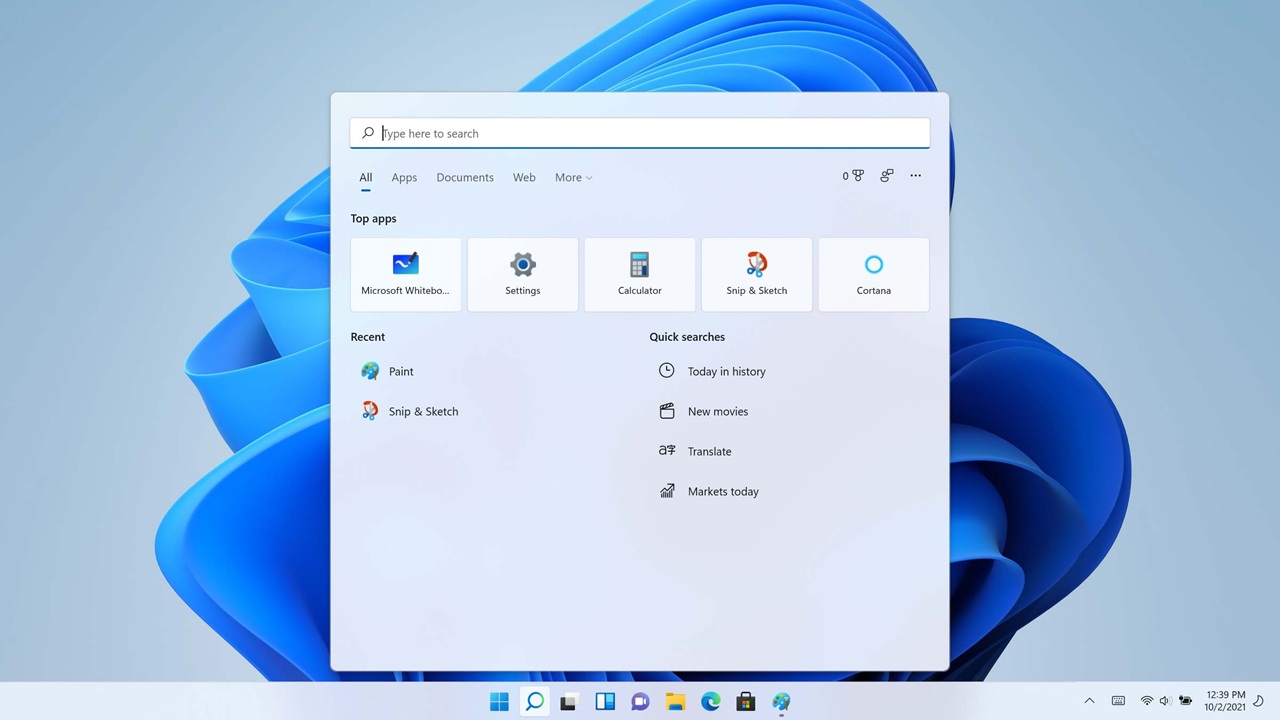
Windows 11 brought a fresh and modern look compared to previous versions, but not everyone instantly loved the centered taskbar or the redesigned Start menu. The good news is that Microsoft has quietly added a range of customization options, and with a few simple tweaks, you can make your desktop feel more personal and efficient.
If you spend hours on your PC every day, even small adjustments can make a big difference. Whether you want a cleaner layout, faster access to apps, or a setup that feels familiar like Windows 10, this guide will walk you through everything in a practical and easy way.
Why Customize the Taskbar and Start Menu

Before jumping into the steps, it helps to understand why customization matters. Your taskbar and Start menu are the most used parts of Windows. They control how quickly you open apps, switch tasks, and manage your workflow.
A cluttered taskbar can slow you down, while a well-organized one saves time. The same goes for the Start menu. If it shows apps you never use, it becomes more of a distraction than a tool.
Customizing these elements helps you:
Improve productivity
Reduce distractions
Create a clean and modern workspace
Match your personal style
Speed up daily tasks
Move the Taskbar to the Left
One of the most common changes users make is moving the taskbar icons back to the left side, just like in Windows 10.
Here’s how you can do it:
Right click on the taskbar
Click on Taskbar settings
Scroll to Taskbar behaviors
Find Taskbar alignment
Change it from Center to Left
This small tweak instantly makes the system feel more familiar, especially if you have used older versions of Windows for years.
Pin and Unpin Apps for Quick Access
The taskbar works best when it only shows the apps you actually use. Too many icons can make it confusing.
To pin an app:
Open the app
Right click its icon in the taskbar
Click Pin to taskbar
To remove an app:
Right click the icon
Click Unpin from taskbar
Try to keep only your daily tools here, like your browser, file explorer, or work apps. This keeps everything clean and accessible.
Customize Taskbar Icons and Features
Windows 11 allows you to control which system icons appear on the taskbar.
Go to Taskbar settings and you will see options like:
Search
Task view
Widgets
Chat
You can turn these on or off depending on your preference. For example, if you never use Widgets, disabling it can reduce clutter.
You can also manage system tray icons:
Scroll to Taskbar corner overflow
Choose which apps appear directly on the taskbar
This is useful for keeping only important icons visible, like WiFi, battery, or volume.
Change Taskbar Size Using Registry Trick
Unlike previous versions, Windows 11 does not officially allow resizing the taskbar. However, there is a simple workaround using the registry.
Steps:
Press Windows key + R
Type regedit and press Enter
Go to this path
HKEY_CURRENT_USER\Software\Microsoft\Windows\CurrentVersion\Explorer\Advanced
Right click and create a new DWORD value called TaskbarSi
Set its value to:
0 for small
1 for default
2 for large
Restart your PC to see the changes.
Be careful when editing the registry. Only change what is necessary.
Customize the Start Menu Layout
The Start menu in Windows 12 Iso File is simpler, but it can still be customized to fit your needs.
Pin Your Favorite Apps
Open the Start menu
Click All apps
Right click any app
Select Pin to Start
This lets you create a personalized grid of apps you actually use.
Unpin Unwanted Apps
Right click any app in the Start menu
Click Unpin from Start
Removing unnecessary apps helps keep the menu clean and easy to navigate.
Organize Apps into Groups
You can drag and drop apps in the Start menu to create groups.
For example, you can create groups like:
Work
Entertainment
Tools
This makes it easier to find apps quickly instead of scrolling through everything.
Adjust Start Menu Recommendations
The Recommended section shows recent files and apps, but not everyone finds it useful.
To manage it:
Go to Settings
Click Personalization
Select Start
Here you can disable:
Recently added apps
Most used apps
Recently opened items
Turning these off gives you a cleaner and more private Start menu.
Change Start Menu Folder Shortcuts
You can add useful shortcuts next to the power button in the Start menu.
Go to:
Settings
Personalization
Start
Folders
Enable options like:
Settings
File Explorer
Downloads
Documents
This saves time when accessing important locations.
Use Third Party Tools for Advanced Customization
If the built in options are not enough, you can use trusted third party tools to unlock more features.
Popular tools include:
StartAllBack
Start11
ExplorerPatcher
These tools allow you to:
Restore classic Start menu styles
Move the taskbar to different positions
Change animations and layouts
Make sure to download these from official websites to avoid security risks.
Personalize Colors and Themes
Customization is not just about layout. Visual appearance also matters.
To change colors:
Go to Settings
Click Personalization
Select Colors
You can choose:
Dark mode or light mode
Accent colors
Transparency effects
Matching your taskbar and Start menu colors with your wallpaper can create a polished look.
Improve Productivity with Smart Layout Choices
Beyond aesthetics, think about how your setup affects your workflow.
Keep frequently used apps on the taskbar
Group similar apps together in the Start menu
Remove anything you rarely use
Use keyboard shortcuts alongside customization
For example, pressing Windows key + number opens taskbar apps instantly. Combining shortcuts with a clean layout can significantly boost efficiency.
Common Mistakes to Avoid
While customizing, many users make a few common mistakes.
Adding too many pinned apps
Ignoring system tray clutter
Overusing third party tools
Not backing up before registry changes
Keep things simple. The goal is to make your system easier to use, not more complicated.
Final Thoughts
Customizing the Windows 11 taskbar and Start menu is not just about looks. It is about creating a workspace that fits your habits and helps you work faster.
Start with small changes like moving the taskbar alignment or pinning your favorite apps. Then gradually explore deeper options like Start menu folders or theme settings. Over time, you will build a setup that feels natural and efficient.
The best part is that there is no single perfect layout. What works for you might not work for someone else. So take a few minutes, experiment with the settings, and shape your Windows experience in a way that truly supports your daily routine.