
If you use a laptop every day, battery life quickly becomes one of the most important things to manage. A powerful system means nothing if your battery drains within a few hours. With Windows 12, Microsoft is expected to bring smarter power management features, but even the best system still needs manual optimization to get the most out of it.
This guide walks you through practical, real-world ways to improve battery life on Windows 12. These are not just technical tweaks but habits and settings that actually make a noticeable difference in daily use.
Why Battery Optimization Matters in Windows 12
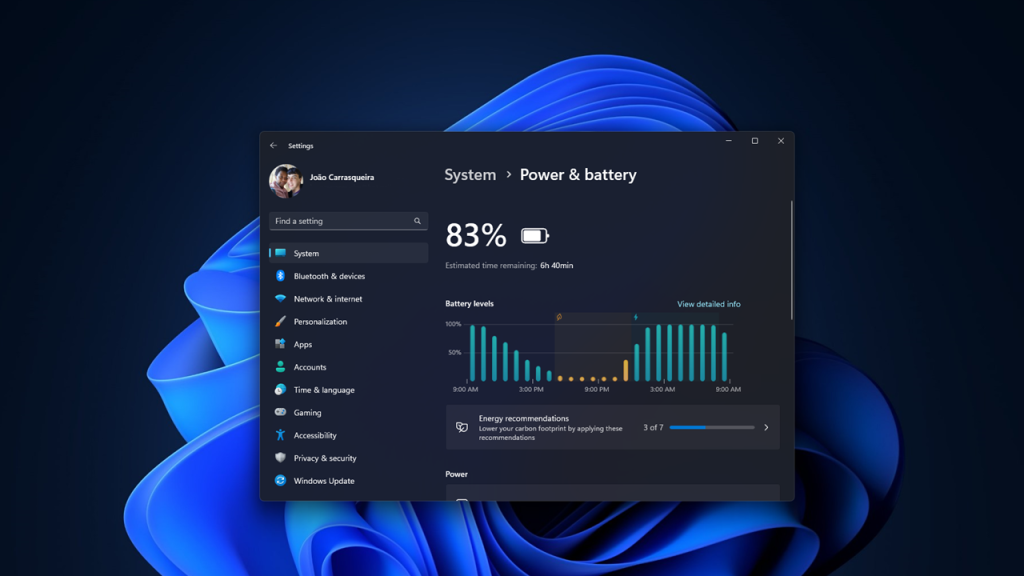
Modern laptops are faster and more efficient than ever, but they also run heavier apps, background services, and AI-powered features. All of this puts pressure on your battery.
Windows 12 focuses more on AI integration and cloud-connected features, which means background activity could increase. Without proper optimization, you may notice faster battery drain compared to older systems.
Optimizing your battery is not only about making it last longer during the day. It also helps extend the overall lifespan of your battery, reducing the need for early replacement.
Turn On Battery Saver Mode
Battery Saver is one of the easiest and most effective tools in Windows.
When enabled, it reduces background activity, limits notifications, and adjusts system performance to conserve power.
To enable it:
- Open Settings
- Go to System
- Click Power and Battery
- Turn on Battery Saver
You can also set it to turn on automatically when your battery drops below a certain percentage. A good starting point is 20 percent, but you can adjust it based on your usage.
Adjust Screen Brightness and Display Settings
Your display is one of the biggest battery consumers.
Keeping brightness at maximum drains power quickly. Lowering it even slightly can extend battery life significantly.
Some useful tips:
- Use auto brightness if your device supports it
- Reduce brightness to a comfortable level instead of maximum
- Enable dark mode to reduce power usage on certain displays
- Set a shorter screen timeout duration
If you step away from your laptop frequently, reducing the screen timeout to one or two minutes can save a surprising amount of battery.
Manage Background Apps
Many apps continue running even when you are not actively using them.
Windows 12 is expected to give better control over background processes, but you should still manage them manually.
Steps to control background apps:
- Go to Settings
- Open Apps
- Select Installed Apps
- Choose apps and limit their background activity
Disable background permissions for apps you rarely use. Messaging apps, cloud sync tools, and update services can quietly drain your battery throughout the day.
Optimize Startup Programs
Too many startup programs slow down your system and increase power usage right from boot.
To manage startup apps:
- Press Ctrl + Shift + Esc to open Task Manager
- Go to the Startup tab
- Disable unnecessary programs
Keep only essential apps enabled. This not only improves battery life but also speeds up your laptop.
Use Power Modes Wisely
Windows 12 includes different power modes designed for performance or efficiency.
Switching to a balanced or power-saving mode can greatly improve battery life.
To change power mode:
- Open Settings
- Go to Power and Battery
- Select Power Mode
Choose Best Power Efficiency when you are on battery and switch back to performance mode only when needed.
Disable Unused Hardware Features
Certain hardware features consume power even when you are not actively using them.
Turn off:
- Bluetooth when not in use
- Wi Fi if you are offline
- Keyboard backlighting in daylight
- External devices connected via USB
Each small change adds up, especially during long work sessions.
Keep Your System Updated
It may sound simple, but updates often include battery optimization improvements.
Windows updates can fix bugs that cause excessive battery drain. Driver updates, especially for graphics and chipset, also play a key role.
Check for updates regularly:
- Open Settings
- Go to Windows Update
- Click Check for Updates
Keeping your system current ensures you benefit from the latest efficiency improvements.
Reduce Heavy App Usage
Some apps consume more power than others. Video editing software, games, and browsers with many tabs open can drain your battery quickly.
To manage this:
- Close unused tabs in your browser
- Use lightweight alternatives for basic tasks
- Avoid running multiple heavy apps simultaneously
If you are working on battery, prioritize essential tasks and save demanding work for when your device is plugged in.
Optimize Browser Settings
Browsers are often the biggest battery drain for many users.
Simple changes can make a big difference:
- Enable energy saver mode in your browser
- Disable unnecessary extensions
- Use fewer tabs
- Turn off auto playing videos
Switching to a more efficient browser or adjusting settings can extend battery life noticeably.
Monitor Battery Usage
Windows 12 provides detailed insights into which apps are consuming the most power.
To check battery usage:
- Open Settings
- Go to Power and Battery
- View Battery Usage
This helps you identify which apps or processes are draining your battery and take action accordingly.
Enable Sleep and Hibernate Settings
Proper sleep settings prevent unnecessary battery drain when your laptop is idle.
Configure your system to:
- Sleep after a short period of inactivity
- Use hibernate for longer breaks
Hibernate uses almost no power and is ideal when you are not using your laptop for several hours.
Maintain Battery Health
Battery optimization is not just about software settings. Physical care also matters.
Good habits include:
- Avoid keeping your laptop plugged in all the time
- Keep battery levels between 20 percent and 80 percent
- Avoid extreme heat exposure
- Use the original charger
These practices help extend the overall lifespan of your battery.
Use AI Powered Optimization Features
Windows 12 Iso Download is expected to introduce smarter AI based battery management.
These features may:
- Learn your usage patterns
- Adjust performance automatically
- Limit background activity during idle periods
Make sure these features are enabled once available, as they can optimize your system without manual effort.
Real Life Tips That Actually Work
Beyond settings and features, daily habits play a big role.
For example, if you often work in coffee shops or during travel, lowering brightness and disabling unused features can easily give you an extra hour or two of battery life.
If you are someone who keeps dozens of browser tabs open, simply reducing them can make a noticeable difference.
Battery optimization is not about one big change. It is about combining small improvements that add up over time.
Common Mistakes to Avoid
Many users unknowingly reduce their battery life by making simple mistakes.
Avoid these:
- Running your laptop at maximum brightness all the time
- Ignoring background apps
- Keeping unnecessary devices connected
- Skipping system updates
- Using high performance mode on battery
Fixing these habits alone can significantly improve battery performance.
Final Thoughts
Windows 12 brings modern features and improved performance, but battery life still depends heavily on how you use your system.
By applying the tips in this guide, you can extend your laptop battery life, improve efficiency, and reduce the need for frequent charging.
Start with simple changes like adjusting brightness and enabling Battery Saver, then move on to deeper optimizations like managing apps and power settings.
Over time, these small improvements will make your laptop more reliable, especially when you need it the most.

